guide
How to copy a request as cURL in Chrome
Chrome can turn any request in the Network panel into a ready-to-run cURL command, with the same URL, method, headers, cookies and body the page sent. It is the fastest way to replay a failing API call outside the browser or hand it to a backend developer. Here is how to do it, which variant to pick, and how to remove secrets first.
Quick answer
Copy as cURL in Chrome
Open DevTools (F12, or Cmd+Option+I on Mac), select the Network panel and reload or repeat the action. Right-click the request in the Name column, hover over Copy and choose Copy as cURL. On Windows, choose Copy as cURL (bash) for Git Bash or WSL, or Copy as cURL (cmd) for Command Prompt. Paste into a terminal and press Enter.
How to copy as cURL, step by step
- Open DevTools on the page that makes the request: F12 or Ctrl+Shift+I on Windows and Linux, Cmd+Option+I on Mac.
- Select the Network panel. If it is hidden, click the
>>overflow arrow in the tab bar, or press Ctrl+Shift+P (Cmd+Shift+P) and type "network". - Trigger the request. The panel only records while DevTools is open, so reload the page or repeat the click or form submit. Check Preserve log if the action redirects.
- Find the request. Click Fetch/XHR in the filter bar to hide images and scripts, or type part of the URL in the filter box. Failed requests show their status in red.
- Right-click the request in the Name column and hover over Copy.
- Choose the format. Copy as cURL on Mac and Linux. On Windows, Copy as cURL (bash) or Copy as cURL (cmd). The command goes to your clipboard.
- Paste and run it in a terminal. You should get the same response the browser received.
The same Copy submenu has Copy all as cURL, which copies every request in the list as a chain of commands. With a filter active it becomes Copy all listed as cURL. Requests to blob: URLs cannot be copied because they only exist inside the browser.
What the copied command contains
A copied command for a JSON API call in current Chrome looks like this (shortened):
curl --url 'https://api.example.com/v1/orders?limit=20' \
  -H 'accept: application/json' \
  -H 'authorization: Bearer eyJhbGciOiJIUzI1NiIs...' \
  -b 'session_id=8f2c41d0; theme=dark' \
  -H 'content-type: application/json' \
  -H 'origin: https://app.example.com' \
  -H 'user-agent: Mozilla/5.0 (Macintosh; Intel Mac OS X 10_15_7) ...' \
--data-raw '{"status":"open"}'| Part | What it is | Watch out for |
|---|---|---|
--url | The full request URL, including query string | Tokens passed as query parameters. Older Chrome versions put the URL straight after curl; both forms work |
-H | Every request header the browser sent | authorization, API keys and CSRF tokens are copied as-is |
-b | The cookies sent with the request | Session cookies let anyone with the command act as you |
--data-raw | The request body for POST, PUT and PATCH | Form fields, passwords and personal data |
-X | The method, added when it cannot be inferred | Rarely sensitive |
Chrome leaves out Accept-Encoding so cURL does not print compressed bytes, and drops headers cURL sets itself, such as Host. Everything else is a faithful copy of what the page sent.
cURL (bash) vs cURL (cmd) vs PowerShell
Mac and Linux show a single Copy as cURL option. Windows shows two, because Command Prompt cannot read the single-quote and backslash syntax bash uses.
| Menu option | Paste it into | Quoting style |
|---|---|---|
| Copy as cURL | Terminal on macOS or Linux (bash, zsh) | Single quotes, \ line breaks |
| Copy as cURL (bash) | Git Bash, WSL, or sharing with Mac and Linux users | Single quotes, \ line breaks |
| Copy as cURL (cmd) | Windows Command Prompt | ^" quoting, ^ line breaks |
| Copy as PowerShell | PowerShell | Invoke-WebRequest with a web session for cookies |
curl --url ^"https://api.example.com/v1/orders?limit=20^" ^
  -H ^"accept: application/json^" ^
  -H ^"authorization: Bearer eyJhbGciOiJIUzI1NiIs...^" ^
  -b ^"session_id=8f2c41d0; theme=dark^"
Pasting into PowerShell?
In Windows PowerShell 5.1, curl is an alias for Invoke-WebRequest, so a bash-style command fails with confusing errors. Use Copy as PowerShell instead, or type curl.exe in place of curl. Windows 10 and 11 include curl.exe.
Replaying and editing the request
Once the command runs, add flags to see more and edit any part to test a theory. Keep the headers from the original command where the examples show ....
# Show response headers and status line, keep the body
curl -i --url 'https://api.example.com/v1/orders?limit=20' -H 'accept: application/json' ...

# Verbose: TLS, redirects and every header sent and received
curl -v --url 'https://api.example.com/v1/orders?limit=20' ...

# Pretty-print a JSON response (needs jq)
curl -s --url 'https://api.example.com/v1/orders?limit=20' ... | jq .

# Replay the same request against your local API
curl --url 'http://localhost:3000/v1/orders?limit=20' ...

# Windows PowerShell: call curl.exe, not the curl alias
curl.exe --url "https://api.example.com/v1/orders?limit=20" -H "accept: application/json"- Change one thing at a time. Edit a field in
--data-rawor a query parameter to find the input that triggers a 400 or 500. - Point it at another environment. Swap the host for staging or
localhostto check whether a fix works with the exact payload from production. - Got 401 or 403 on replay? The session or CSRF token has expired. Copy the request again right after reproducing.
- Need to replay in the browser instead? Right-click a request and choose Resend (called Replay XHR in older Chrome), or Edit and resend as fetch, which puts an editable fetch call in the Console.
Copy as fetch and Copy as fetch (Node.js)
The Copy submenu also offers Copy as fetch, which produces a JavaScript fetch() call you can paste into the Console on the same site:
fetch("https://api.example.com/v1/orders?limit=20", {
  "headers": {
    "accept": "application/json",
    "authorization": "Bearer eyJhbGciOiJIUzI1NiIs...",
    "content-type": "application/json"
  },
  "referrer": "https://app.example.com/",
  "body": "{\"status\":\"open\"}",
  "method": "POST",
  "mode": "cors",
  "credentials": "include"
});| Option | Cookies | Best for |
|---|---|---|
| Copy as fetch | Not in the code; credentials: "include" makes the browser send its own | Re-running a call in the Console on the same origin, or in a test |
| Copy as fetch (Node.js) | Included as a cookie header | Scripts and reproductions that run outside the browser |
| Copy as cURL | Included with -b | Terminals, backend developers, API clients that import cURL |
Browser fetch cannot set some headers, such as user-agent and cookie, so Chrome leaves them out of the browser version. An authorization header is still copied, so check it before sharing.
The faster way: Bugmark
Copy as cURL needs DevTools open before the request happens, and every command needs a manual secrets check. Bugmark is a Chrome extension that keeps a rolling network log for the tab, so the failing request is already captured when you report the bug.
- Records the last 150 requests (fetch, XHR and resources) with method, URL, status and timing.
- For the 60 most recent fetch/XHR calls, keeps query params, request headers and payload, response headers and response body.
- Masks secrets before saving: passwords, tokens, API keys, session IDs, card numbers and
Authorization/Cookieheaders become[redacted]. - Filter to failures, Copy as cURL, or Download HAR and open it in Chrome DevTools.
- Attaches the screenshot, console errors and steps to reproduce to the same report.
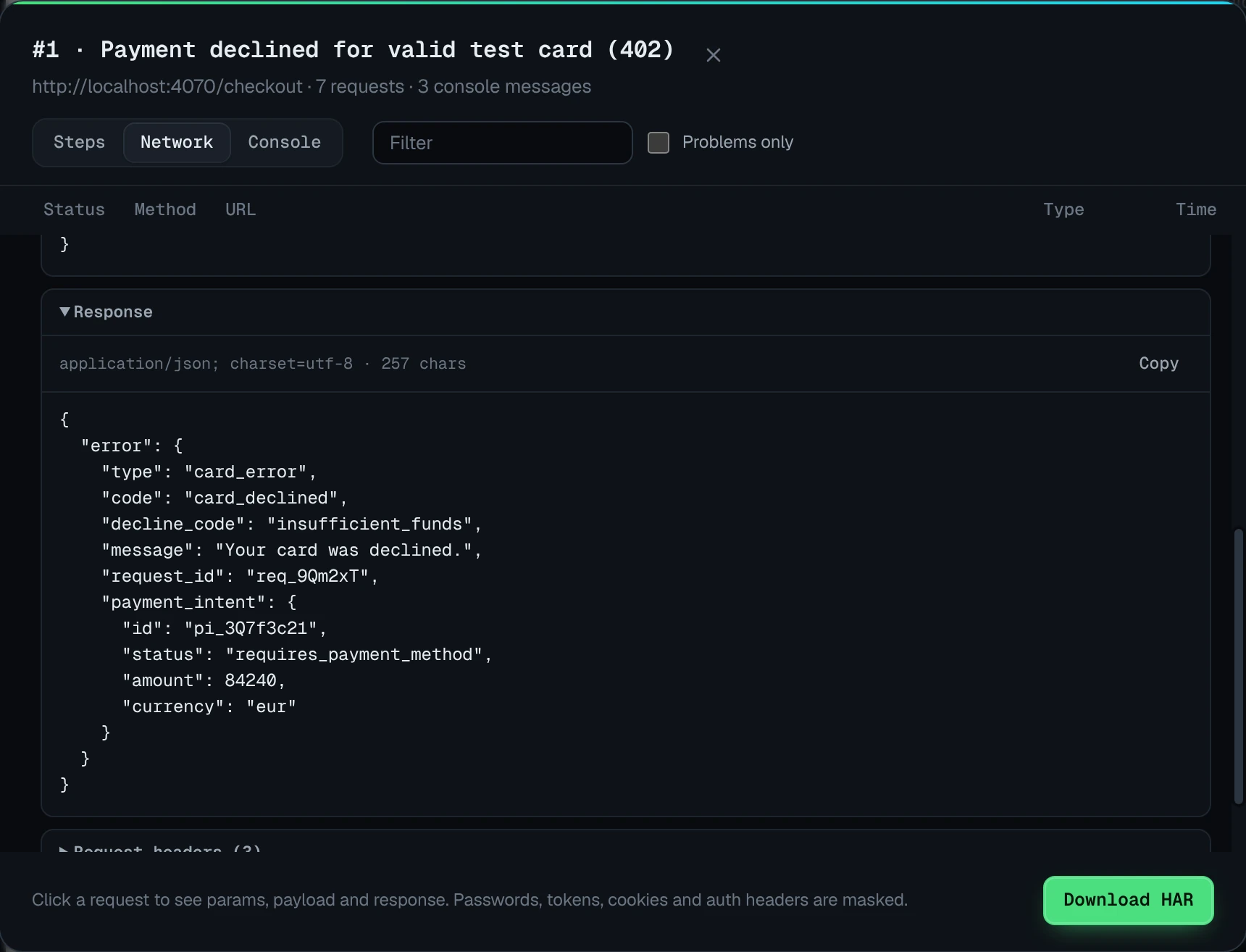
Because commands are built from the already-masked log, you add your own test credentials when replaying. Bugmark is free to try with every feature unlocked, up to 2 saved reports at a time; a one-time $15 payment removes the limit, with no subscription or account. Add Bugmark to Chrome
How to copy a request as cURL in Chrome
- 1
Open DevTools
Press F12, Ctrl+Shift+I or Cmd+Option+I on the page that makes the request.
- 2
Select the Network panel
Click the Network tab, using the overflow arrow if it is hidden.
- 3
Trigger the request
Reload the page or repeat the action so the request appears in the list.
- 4
Find the request
Filter by Fetch/XHR or type part of the URL to locate the request.
- 5
Copy as cURL
Right-click the request, hover over Copy and choose Copy as cURL, or Copy as cURL (bash) or (cmd) on Windows.
- 6
Run it in a terminal
Paste the command into a terminal and press Enter to replay the request.
- 7
Remove secrets before sharing
Replace cookie, authorization and token values with placeholders before sending the command to anyone.
Frequently asked questions
Where is Copy as cURL in Chrome?
Open DevTools and select the Network panel, then reproduce the request. Right-click the request in the Name column, hover over Copy, and choose Copy as cURL. On Windows the menu shows Copy as cURL (bash) and Copy as cURL (cmd) instead of a single option.
What is the difference between Copy as cURL (bash) and Copy as cURL (cmd)?
They produce the same request with different quoting. The bash version uses single quotes and backslash line breaks for bash, zsh, Git Bash and WSL. The cmd version uses caret escaping for Windows Command Prompt. For PowerShell, use Copy as PowerShell or run curl.exe explicitly.
Does Copy as cURL include cookies?
Yes. Chrome adds the cookies sent with the request using the -b option, and copies headers such as Authorization unchanged. That is why the command replays as your logged-in session, and also why you should remove cookies and tokens before sharing it with anyone.
Why does my copied cURL command return 401 or 403?
The session cookie, bearer token or CSRF token in the command has usually expired or been rotated. Reproduce the action in the browser again and copy a fresh command. Some APIs also bind tokens to the browser or check the Origin header, so keep the copied headers intact.
Can I copy all network requests as cURL at once?
Yes. Right-click any request, hover over Copy and choose Copy all as cURL. Chrome copies every request in the list as a chain of commands. If you have a filter active, the option becomes Copy all listed as cURL and only includes the filtered requests.
Try Bugmark free — no account needed
- Screenshots & screen recording
- Console & network logs
- Steps to reproduce
- GitHub issues & reports