free bug reporting tool
A free bug reporting tool that captures what developers need
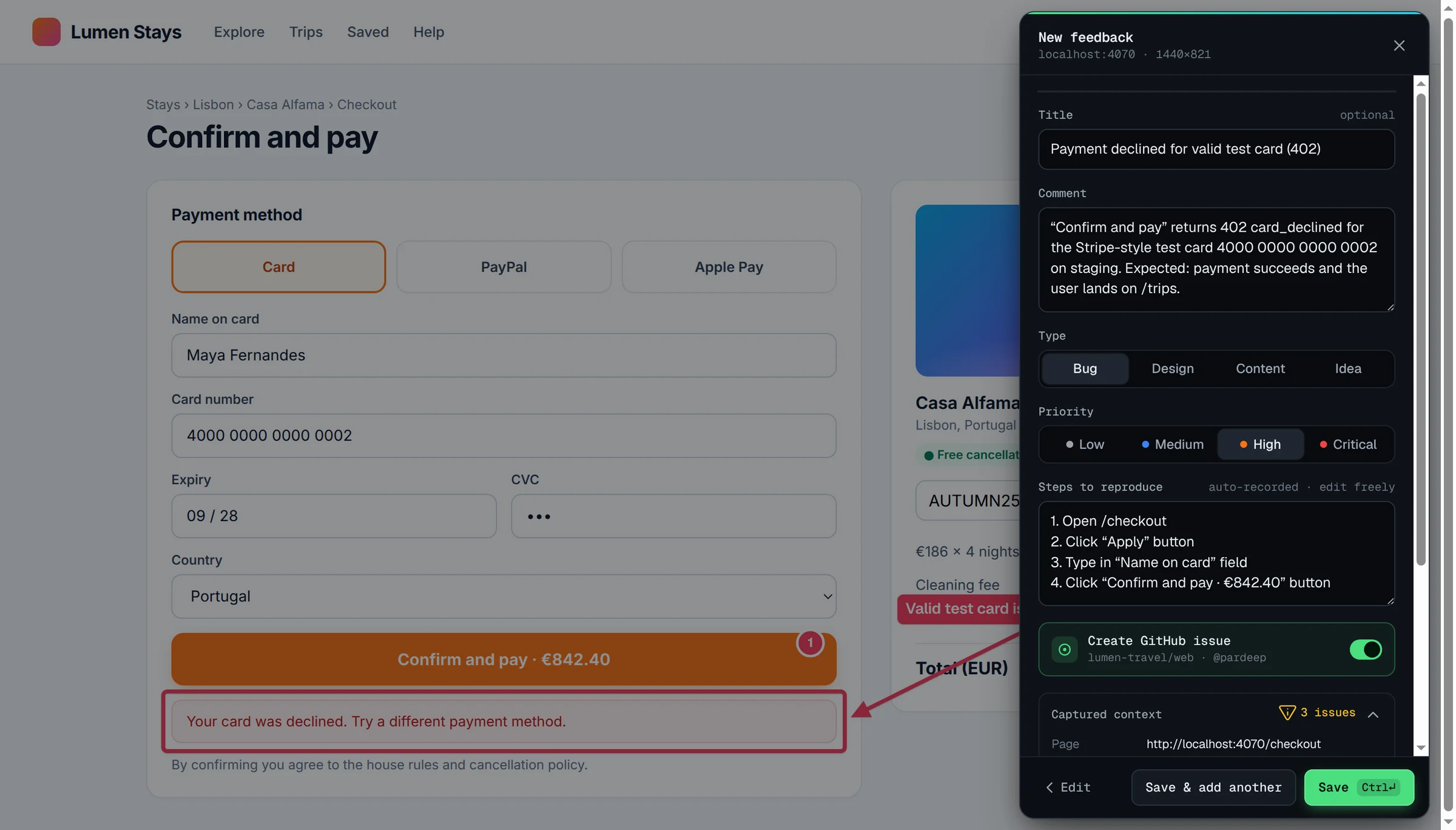
Bugmark is a free Chrome extension that turns “it's broken” into a report a developer can act on. One capture gives you an annotated screenshot or screen recording, the steps that led there, console errors, network requests and environment details, stored locally in your browser.
Why most bug reports get bounced back
A typical report arrives as a sentence in chat and a cropped screenshot. The developer then spends the first half hour asking questions: which page, which browser, what did you click first, was there an error, did the request fail or did the UI just not update? By the time the answers come back, the reporter has moved on and the state that caused the bug is gone.
The problem is rarely effort. Reporters can't see the console, don't know which network call matters, and forget the exact order of their clicks. A bug reporting tool earns its place when it collects that context automatically, so the person who found the problem only has to describe what they expected to happen.
That context also changes how a bug gets triaged. A report that already shows a 500 from the orders API goes straight to the backend engineer who owns it. A report that shows a clean network log and a layout shift at 768 pixels goes to the front end. Without that evidence, every ticket starts in a generic queue and waits for someone to investigate it before anyone can even decide who should fix it.
What a Bugmark report contains
Every capture, whether a screenshot or a recording, has the same developer context attached without any extra clicks:
- Visual evidence — a screenshot marked up with arrows, rectangles, numbered pins and text labels, or a tab recording of up to 5 minutes with microphone narration.
- Steps to reproduce — the last 30 actions in the tab: clicks with element labels, which field was typed in (never the text itself), selects, checkboxes, form submits and SPA navigation. You can edit them before saving.
- Console log — the last 150 console messages, plus JavaScript errors and unhandled promise rejections.
- Network log — the last 150 requests with method, URL, status and timing, and full request/response detail for the 60 most recent fetch and XHR calls.
- Environment — URL, page title, browser, OS, viewport, pixel ratio and scroll position.
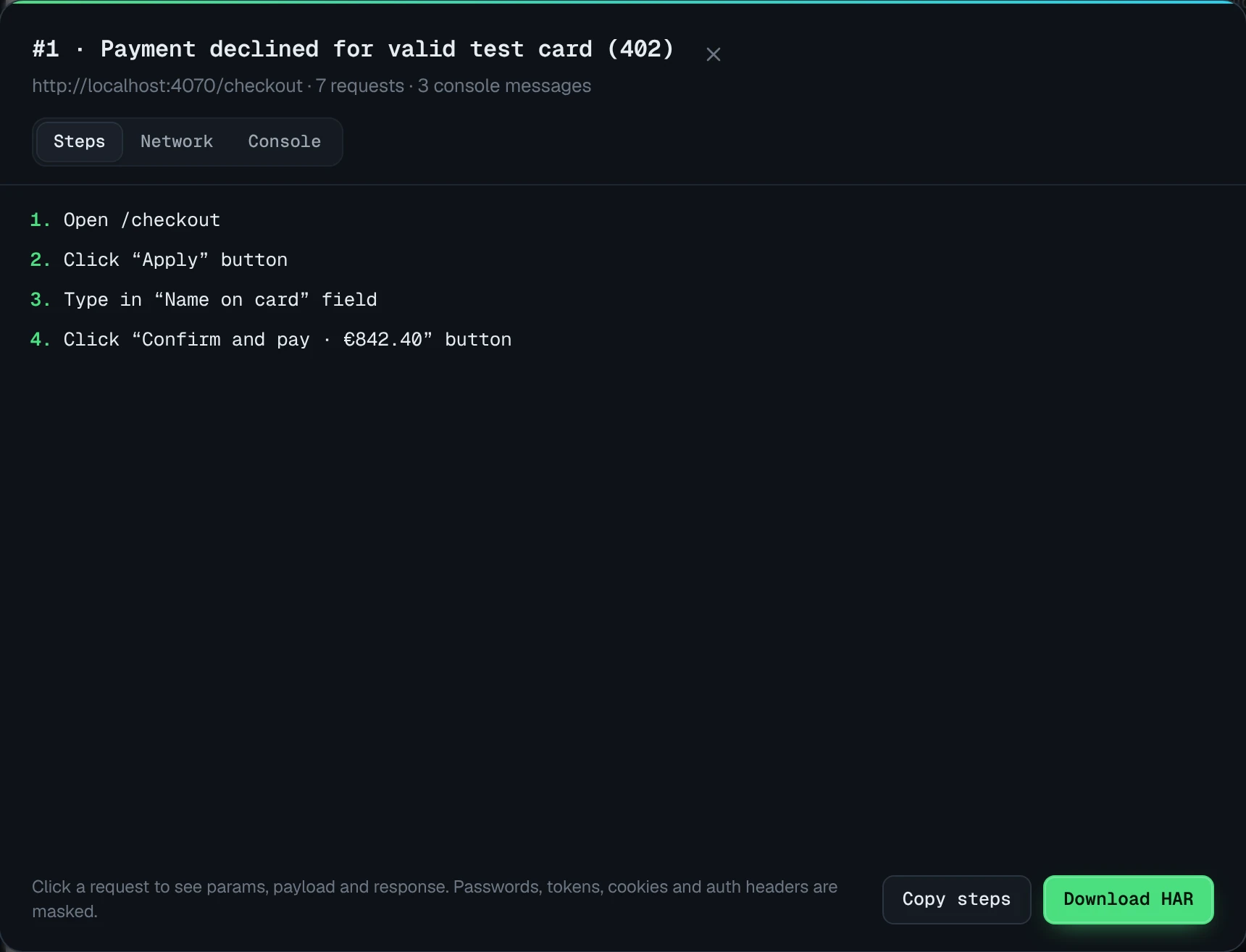
Passwords, tokens, API keys, session IDs, card numbers and Authorization/Cookie headers are replaced with [redacted] before the report is saved. If you want a checklist for the written part of the report, our guide on how to write a bug report covers titles, expected versus actual behavior and severity.
Manual reporting vs. a visual bug reporting tool
| Detail developers ask for | Manual report | Bugmark |
|---|---|---|
| What the reporter saw | Cropped screenshot, often without context | Annotated screenshot or narrated recording |
| How they got there | Written from memory, if at all | Last 30 tab actions, editable |
| JavaScript errors | Only if the reporter opened DevTools | Last 150 console messages and uncaught errors |
| Failed API calls | Rarely included | Status, payload and response body, filterable to failures |
| Browser and viewport | Frequently missing | Recorded automatically |
| Sensitive values | Pasted in by accident | Masked before saving |
The written part still matters. Bugmark can't know what you expected to happen, so a one-line comment such as “Expected a confirmation screen; the button spins and nothing changes” is what turns the evidence into a bug. The difference is that this line becomes the only thing you type.
How it works
- Press ⌥⇧S (Alt+Shift+S) on the page where you found the problem, or start a recording with ⌥⇧R.
- Mark up the page with pins, arrows or the redact tool, then press Enter to capture.
- Add a title, comment, type and priority, and review the auto-recorded steps.
- Save with ⌘/Ctrl+Enter. The report lands in your local dashboard, grouped by site.
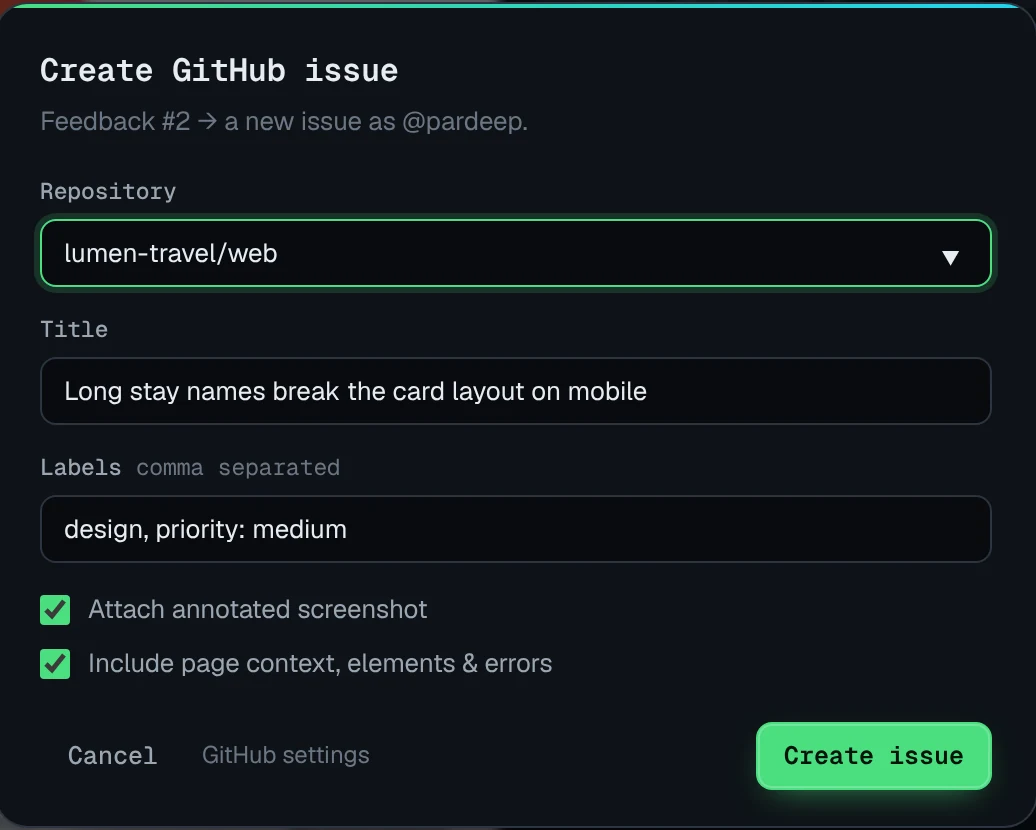
- Create a GitHub issue directly, or export HTML, PDF, CSV or Markdown for whatever tracker your team uses.
Who uses it
Bugmark is built for teams where the people finding bugs and the people fixing them are not the same. Product managers and designers use it during reviews. Support teams use it to reproduce a customer's problem once and hand engineering something concrete. Developers use it on their own staging sites to keep a running list of issues without switching to a tracker every few minutes. QA testers get a dedicated workflow, covered on the QA testing tool page, and agencies collecting client comments should look at the website feedback tool page.
Local-first by default
Screenshots, recordings and logs are stored in IndexedDB in your browser. Nothing is uploaded to Bugmark servers; data leaves your machine only when you export a report or create a GitHub issue.
What Bugmark does not do (yet)
Being precise about limits saves you a trial. Bugmark has no native Jira, Linear or Slack integration today; use CSV export for bulk imports or Markdown copy to paste a formatted report. There are no hosted share links and no team workspace or cloud sync, so reports are shared as files or GitHub issues. It does not replay past sessions: a recording has to be started before the bug happens, although steps, console and network logs are always captured. It runs in Chrome and Chromium browsers such as Edge, Brave and Arc, not Firefox or Safari.
If you are comparing options, see how Bugmark stacks up against Jam and Marker.io.
Start reporting bugs developers can fix
Every feature is unlocked, with no sign-up and no required watermark. The free version keeps up to 2 saved reports at a time; a one-time $7.99 payment removes the limit. Install it in a couple of clicks from the Chrome Web Store.
Frequently asked questions
Is there a free bug reporting tool for Chrome?
Yes. Bugmark is free to try with every feature unlocked and no account; the free version keeps up to 2 saved reports at a time, and a one-time $7.99 payment (no subscription) unlocks unlimited reports. It captures annotated screenshots, screen recordings, steps to reproduce, console logs and network requests, and it works in Chromium browsers such as Edge, Brave and Arc as well.
What should a good bug report include?
A clear title, the expected and actual behavior, the steps to reproduce, the page URL, browser and viewport, and visual evidence. For web apps, console errors and failed network requests usually point straight at the cause. Bugmark attaches the steps, logs and environment details automatically so the reporter only writes the description.
Do I need an account to use Bugmark?
No. Bugmark runs entirely in your browser without sign-up. Reports are stored locally in IndexedDB. You only connect an account if you choose to create GitHub issues, and even then the token is stored in your browser, not on a Bugmark server.
Can Bugmark send bug reports to Jira or Linear?
There is no native Jira or Linear integration yet. You can export reports as CSV for bulk import, or copy a single report as Markdown and paste it into a Jira or Linear ticket. GitHub issues are supported directly, including screenshots, recordings and HAR files that render inside the issue.
Does Bugmark capture passwords or personal data?
Typed text is never recorded in the steps, only which field was used. Passwords, tokens, API keys, session IDs, card numbers and Authorization or Cookie headers are replaced with [redacted] before saving. You can also pixelate anything visible on screen with the redact tool before capturing.
Try Bugmark free — no account needed
- Screenshots & screen recording
- Console & network logs
- Steps to reproduce
- GitHub issues & reports