bug report video
A screen recorder for bug reports, with the logs attached
Some bugs only make sense in motion: a flicker, a double submit, a spinner that never stops. Bugmark records the tab with your narration and attaches the console, network log and steps from the same session, so the video isn't the only evidence.
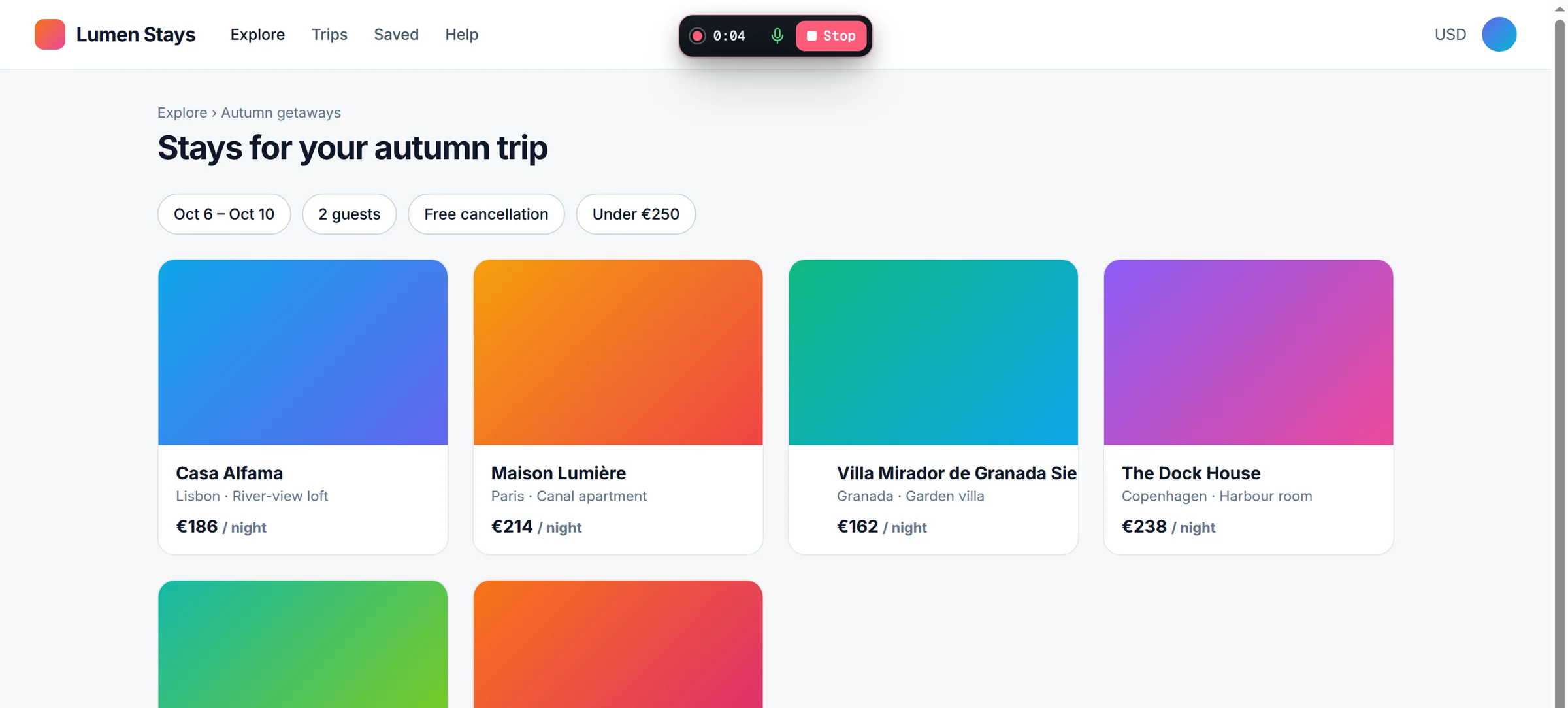
When a screenshot is not enough
A still image shows the final state. It can't show that the modal opened twice, that the cart count jumped from 2 to 0 and back, or that the page scrolled to the top on every keystroke. For timing, animation and multi-step flows, a short video is the clearest description you can give.
The trouble with a generic screen recorder is that the developer watches the video, sees the problem, and still has no idea why it happened. They pause on a frame, squint at the URL bar, and ask for the console output. A screen recorder for bug reports should capture the diagnostic data in the same pass.
Video also has a reviewing cost. A developer triaging twenty tickets won't watch twenty three-minute clips end to end. They need a way to jump to the moment the problem appears and a written summary of what happened. That is why Bugmark attaches the recorded steps and logs next to the player: the video confirms the symptom, and the text tells the developer where to look.
What gets recorded
- The tab, as WebM video, for up to 5 minutes per recording.
- Your voice, via microphone narration, so you can say what you expected while you show what happened.
- Across page loads — the recording continues through navigation and full reloads, which matters for login redirects and multi-page checkouts.
- Console and network logs from the session: the last 150 console messages with JavaScript errors and unhandled rejections, and the last 150 requests with payloads and response bodies for recent fetch/XHR calls.
- Steps to reproduce — the last 30 actions, so the reader can skim the sequence without scrubbing through the video.
- Environment — URL, browser, OS, viewport and pixel ratio.
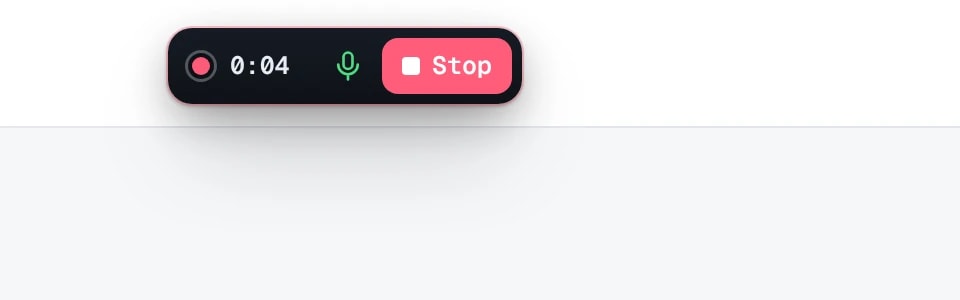
Recording a bug in five steps
- Go to the page just before the problem starts.
- Press ⌥⇧R (Alt+Shift+R) or choose Record video from the capture menu, and allow microphone access if you want narration.
- Walk through the flow at normal speed and narrate: “I apply the promo code, now I click pay, and nothing happens.”
- Click Stop. Bugmark picks a poster frame and attaches the logs and steps.
- Add a title and priority, then create a GitHub issue or export an HTML report with the video embedded.
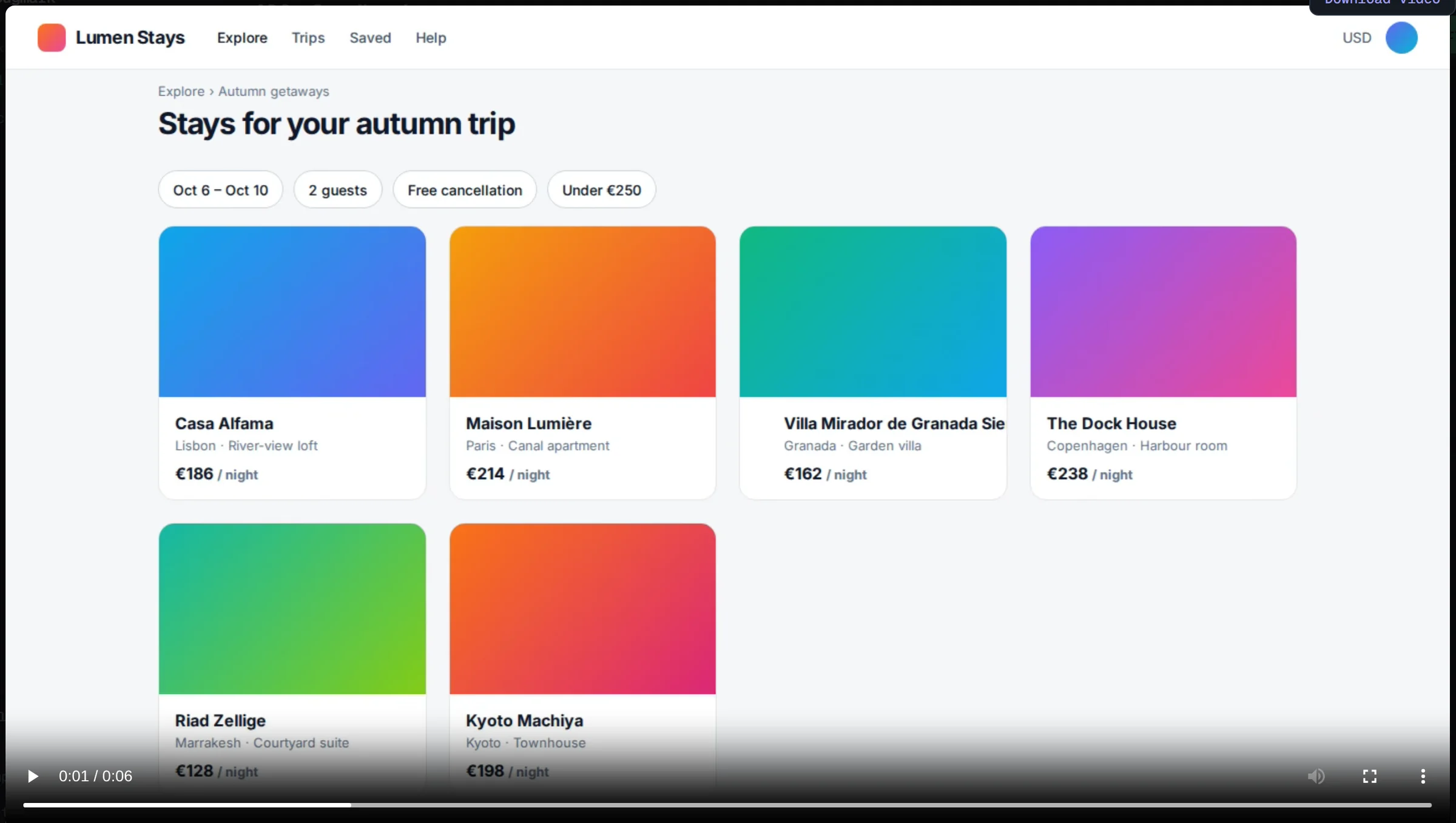
Tips for bug videos developers will actually watch
- Keep it short. Start recording one step before the bug, not at the home page. Thirty seconds that show the problem beat four minutes of navigation.
- Say the expected result out loud. The video shows the actual behavior; your narration is the only place the expectation lives.
- Reproduce it twice if you can. A second attempt in the same recording shows whether the bug is consistent or intermittent.
- Use a screenshot for static issues. A misaligned icon is faster to read as an annotated image; see the screenshot annotation tool page.
- Check the steps before saving. They are editable, so you can remove irrelevant clicks and keep the list readable.
- Mention the data state. Say which account, plan or test data you are using. Many bugs depend on an empty cart, an expired trial or a specific role, and none of that is visible on screen.
Our steps to reproduce template pairs well with a recording when the report goes to a team that prefers written steps.
Compared with a general-purpose screen recorder
Tools like Loom are built for async video messages: hosted links, viewer comments, camera bubbles, recordings of any app on your desktop. Bugmark is narrower. It records the browser tab only, and it has no hosted share links, so you share recordings through a GitHub issue or an exported HTML report file. What you get in return is the technical context alongside the video, local storage with nothing uploaded to Bugmark servers, and no account. There is a fuller breakdown on the Loom alternative page.
One more limit worth stating: Bugmark does not replay past sessions. If the bug happened before you pressed record, you won't have video of it, although the console, network and step logs still cover recent activity and can be attached to a screenshot instead.
Where recordings end up
When you create a GitHub issue, recordings are committed to a separate orphan branch called bugmark-assets so they render in the issue without cluttering your main history. HTML reports embed the video directly, so the file plays offline. Your dashboard keeps every recording with its logs until you resolve or delete it. For teams on Jira or Linear, attach the exported HTML report or use the Markdown copy for the written details.
Recordings are stored in IndexedDB in your browser, not uploaded to Bugmark servers. That keeps screen recordings of internal dashboards, admin panels and unreleased features on your own device until you decide to share them, which is often the deciding factor for teams recording anything behind a login.
Record your next bug with the context included
Free to try, no account and no required watermark. Works in Chrome, Edge, Brave and Arc. Add Bugmark to Chrome — free.
Frequently asked questions
How do I record a bug in Chrome?
Install a screen recording extension, open the page just before the bug appears, start recording, reproduce the issue while narrating what you expect, then stop. With Bugmark, press Alt+Shift+R to record the tab with your microphone; console logs, network requests and steps are attached to the video automatically.
Can I record my screen with audio in a Chrome extension?
Yes. Bugmark records the current tab as WebM video with microphone narration, for up to 5 minutes per recording. Chrome asks for microphone permission the first time. The recording continues across page loads, so multi-page flows like sign-in or checkout can be captured in one video.
How long can a Bugmark screen recording be?
Each recording can run for up to 5 minutes. That covers most bug reproductions comfortably; shorter recordings that start just before the problem are easier for developers to review. If you need to show several separate issues, record them as separate captures so each has its own logs and priority.
Should a bug report include a video or a screenshot?
Use a screenshot for static problems such as layout, copy or styling issues, and a video for anything involving timing, animation, sequences of actions or intermittent behavior. In either case, include steps to reproduce and console and network logs, which Bugmark attaches to both kinds of capture.
Where are Bugmark recordings stored?
Recordings are stored locally in your browser using IndexedDB and are not uploaded to Bugmark servers. They leave your device only when you export an HTML report, which embeds the video, or create a GitHub issue, where the file is committed to a separate bugmark-assets branch in your repository.
Try Bugmark free — no account needed
- Screenshots & screen recording
- Console & network logs
- Steps to reproduce
- GitHub issues & reports