annotate screenshots in chrome
A screenshot annotation tool that works on the live page
Most screenshot tools capture first and annotate later in a separate editor. Bugmark lets you mark up the page itself, then capture exactly what you need: the visible area, the full scrolling page, a single element, or three breakpoints at once.
Why annotate before you capture
The usual workflow is capture, save, open an editor, draw, export, then drag the file into a ticket. On a web page that detour loses context: the editor doesn't know the URL, the viewport or which element you meant, and a cropped image doesn't show where on the page the problem sits. Repeat that for ten issues and the markup work becomes the slowest part of a review.
Annotating in place keeps everything attached. The drawing happens over the real page, the capture records where you were, and the result goes straight into a report you can export or turn into an issue. You never manage a folder of image files. Keyboard shortcuts keep the loop short: ⌥⇧S opens the toolbar, Enter captures, and ⌘/Ctrl+Enter saves, so marking up a page takes seconds rather than a trip through a separate app.
The drawing tools
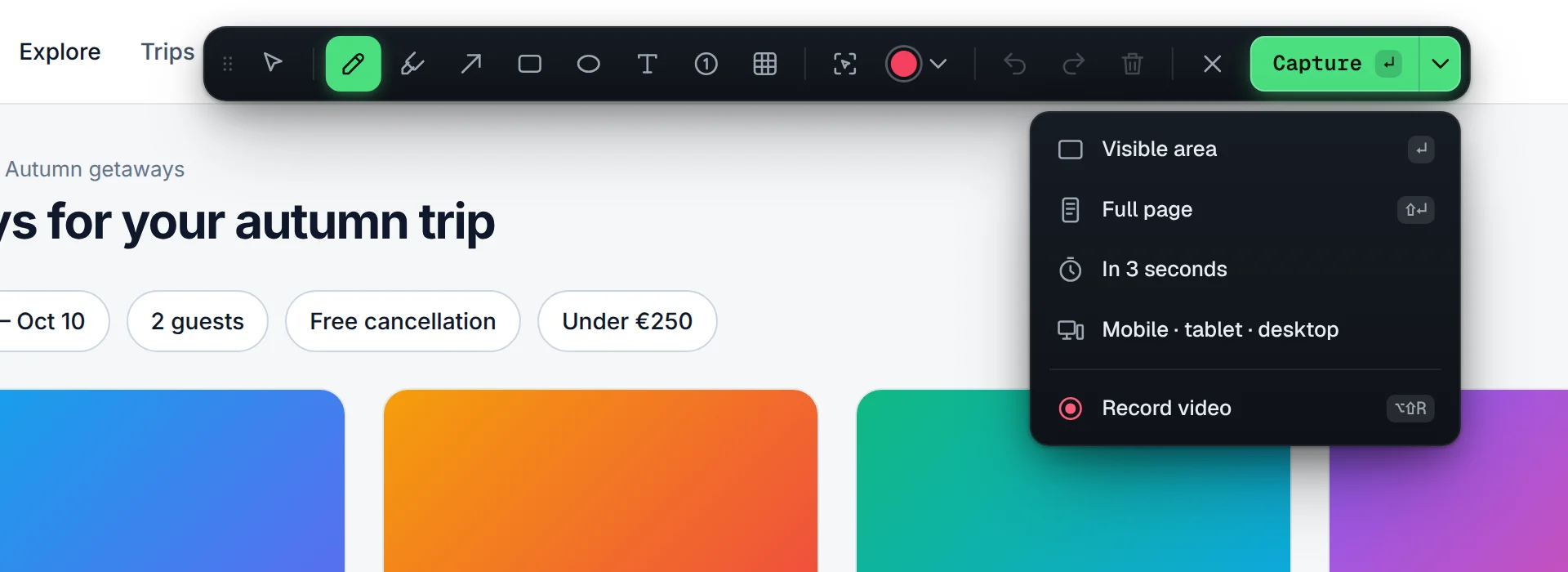
Press ⌥⇧S (Alt+Shift+S) and a toolbar appears over the page. Everything is drawn on top of the live site, so you can scroll and position annotations before you capture.
| Tool | Good for |
|---|---|
| Pen | Freehand circles and quick marks |
| Highlighter | Copy edits and text that needs attention |
| Arrow | Pointing at a small element such as an icon or a link |
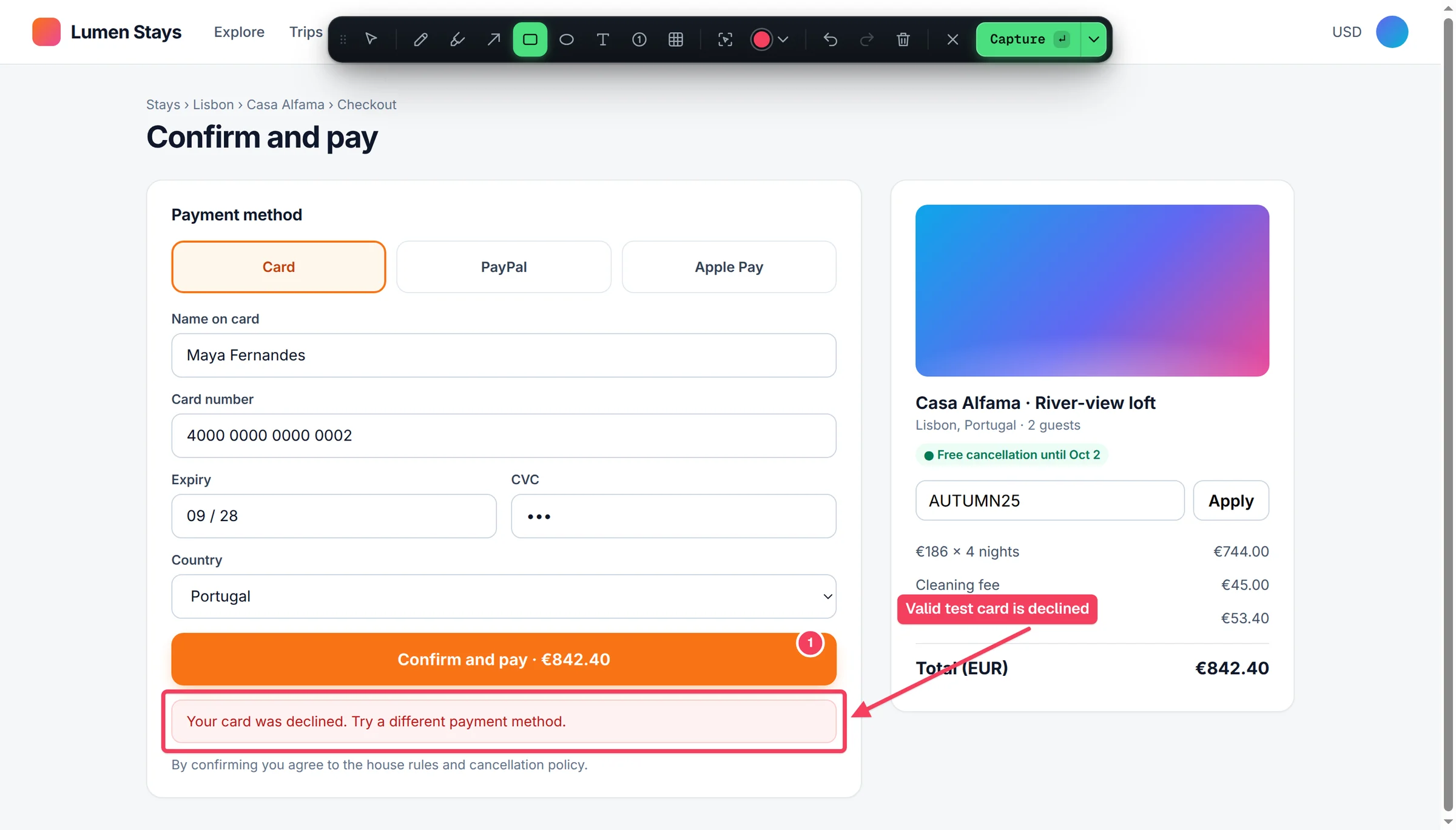
| Rectangle / ellipse | Grouping an area, such as a misaligned card row |
| Text label | Short notes placed next to the problem |
| Numbered pins | Several issues in one capture, referenced as 1, 2, 3 in the comment |
| Redact | Pixelating emails, names or account numbers before sharing |
Capture modes for awkward pages
- Visible area — what's on screen right now.
- Full page — scroll-and-stitch capture of the whole document. It also handles inner scrolling panels and SPA containers, where the page body doesn't scroll but a
divinside it does, which trips up many full page screenshot extensions. - In 3 seconds — a delayed capture so you can hover a menu, open a tooltip or trigger a focus state before the screenshot is taken.
- Element — capture one component on its own, cropped to its bounds.
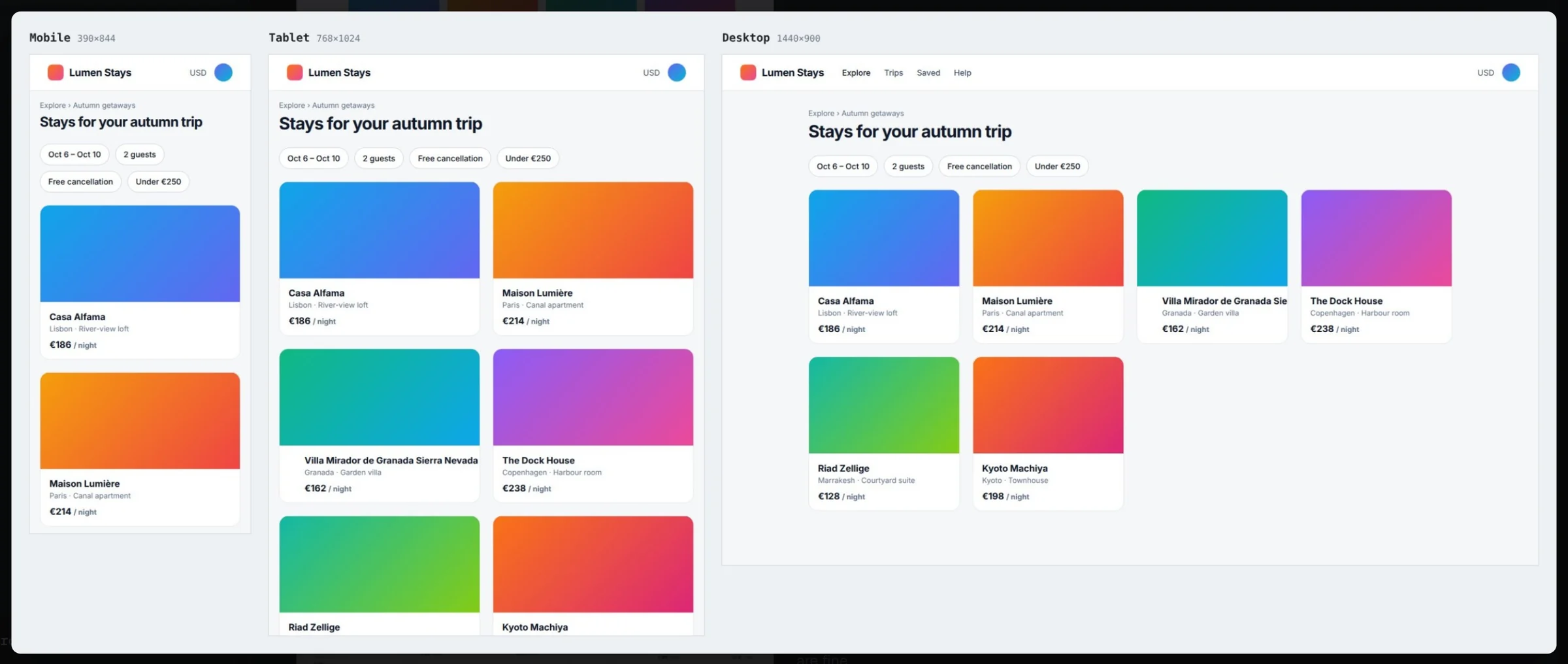
- Mobile · tablet · desktop — Chrome device emulation renders the page at 390×844, 768×1024 and 1440×900 and combines them into one side-by-side image.
“Interact with page” mode pauses the drawing layer so you can open a dropdown, expand an accordion or switch a tab first, then return to annotating. If you only need a plain full page image without an extension, our guide to a full page screenshot in Chrome shows the built-in DevTools command.
Annotation with measurements, not just markup
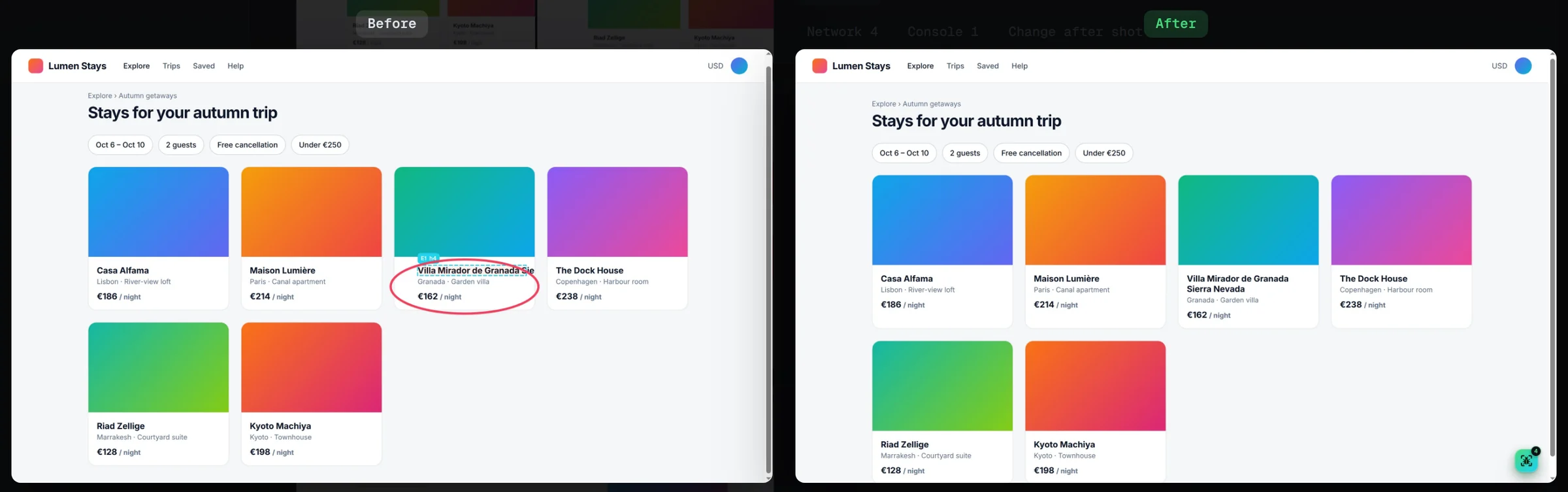
An arrow that says “too much space” invites a round of back-and-forth. Bugmark's element inspector lets you click the element and attach its CSS selector, rendered size and computed styles: font, color, background, padding, margin, border, radius and display. The designer's note and the actual values arrive together, which is usually enough for a developer to fix spacing or typography issues without opening the page. It also avoids a classic mix-up on component libraries, where the same card appears in several places: the selector says exactly which instance you meant.
After the fix, the before/after option adds a second screenshot to the same report, recaptured at the same scroll position, uploaded, or pasted from the clipboard, and shows both side by side.
What it is not
Bugmark is a markup tool for websites running in Chrome and Chromium browsers (Edge, Brave, Arc). It does not capture your desktop or other applications, it is not a general image editor with layers and filters, and it does not host images at a public link. Screenshots are stored in IndexedDB on your device and leave only when you export or create a GitHub issue. If you mostly annotate for client sign-off, the website feedback tool page covers white-label reports and review rounds.
Redact before you capture
The redact tool pixelates the area in the captured image itself. Separately, secrets in the attached logs, such as tokens, passwords and Authorization headers, are masked automatically before saving.
Annotate your next screenshot in Chrome
Free to try, with no account and no required watermark; a one-time $7.99 removes the 2-report limit. It installs in about a minute and works in Chrome, Edge, Brave and Arc, so the whole team can mark up pages the same way. Add Bugmark to Chrome — free.
Frequently asked questions
How do I annotate a screenshot in Chrome?
Chrome has no built-in annotation, so use an extension. With Bugmark, press Alt+Shift+S on the page, draw arrows, rectangles, numbered pins, highlights or text labels directly over the live site, then press Enter to capture. The annotated screenshot is saved to a local dashboard for export or sharing.
How do I take a full page screenshot of a page with an inner scrolling panel?
Many tools only stitch the document body, so apps with a scrolling container get cut off. Bugmark’s full page mode scrolls and stitches both the page and inner scrolling panels or SPA containers. Chrome DevTools also has a Capture full size screenshot command, but it does not annotate.
Can I screenshot a hover state or dropdown menu?
Yes. Use the delayed capture mode, which waits 3 seconds so you can hover a menu or open a tooltip before the screenshot is taken. Alternatively, switch to interact with page mode, open the dropdown, and then return to annotating and capture.
How do I hide sensitive information in a screenshot?
Use a redact or pixelate tool before sharing. Bugmark includes a redact tool that pixelates any area you draw over, such as names, emails or account numbers. Sensitive values in the attached network and console logs, including tokens and passwords, are masked automatically before the capture is saved.
Is Bugmark’s screenshot tool free?
Yes. Bugmark is free to try with every feature unlocked, including full page, element and breakpoint captures, annotation tools, redaction and exports. There is no account and no required watermark; the free version keeps up to 2 saved reports at a time, and a one-time $7.99 payment removes the limit. It runs in Chrome, Edge, Brave and Arc.
Try Bugmark free — no account needed
- Screenshots & screen recording
- Console & network logs
- Steps to reproduce
- GitHub issues & reports