guide
How to take a full page screenshot in Chrome
Chrome can capture an entire scrolling page as one image without installing anything. It is just hidden inside DevTools. This guide covers the built-in command, mobile-size captures, and what to do when the result looks wrong.
Quick answer
Full page screenshot in Chrome
Open DevTools with F12 or Cmd+Option+I, then press Ctrl+Shift+P (Cmd+Shift+P on Mac) to open the Command Menu. Type "screenshot", choose Capture full size screenshot and press Enter. Chrome saves a PNG of the entire page, top to bottom, to your Downloads folder.
How to take a full page screenshot without an extension
- Open the page and wait until it has fully loaded. Scroll to the bottom and back up once so lazy-loaded images appear.
- Open DevTools. Press F12 or Ctrl+Shift+I on Windows and Linux, Cmd+Option+I on Mac, or right-click and choose Inspect.
- Open the Command Menu. Press Ctrl+Shift+P on Windows and Linux or Cmd+Shift+P on Mac. Make sure the DevTools window is focused.
- Type "screenshot". A list of screenshot commands appears.
- Choose Capture full size screenshot and press Enter.
- Find the PNG in your Downloads folder. It is named after the site and can be very tall on long pages.
The window width stays the same, so the screenshot shows the page at your current desktop layout. Dock DevTools to the bottom, or undock it into a separate window, if you want the full browser width.
Chrome's screenshot commands compared
| Command | What it captures | Best for |
|---|---|---|
| Capture full size screenshot | The entire scrollable page | Landing pages, long articles, design reviews |
| Capture screenshot | The visible viewport only | Showing what a user sees without scrolling |
| Capture area screenshot | A region you drag to select | Cropping to one component |
| Capture node screenshot | The element selected in the Elements panel | A single card, table or modal, even taller than the screen |
For Capture node screenshot, select the element in the Elements panel first. You can also right-click the element node there and choose the screenshot option from the context menu.
How to screenshot a single element
Sometimes you only need one component, such as a pricing table, a modal or a long sidebar, without cropping by hand. Capture node screenshot captures the element at its full size, even when part of it is scrolled out of view.
- Right-click the element on the page and choose Inspect. DevTools opens with the element highlighted in the Elements panel.
- If the wrong node is selected, move up or down the tree until the blue page highlight covers exactly the area you want.
- Press Ctrl+Shift+P (Cmd+Shift+P on Mac), type "node" and choose Capture node screenshot. You can also right-click the node in the Elements panel and pick the screenshot option.
- Open the PNG from your Downloads folder. It is cropped to the element's box, including any padding but not its margin.
Tip: to get a little breathing room around the element, temporarily add padding to it in the Styles pane before capturing.
Full page screenshots at mobile and tablet sizes
- Open DevTools and click Toggle device toolbar (the phone and tablet icon), or press Ctrl+Shift+M (Cmd+Shift+M on Mac).
- Choose a device from the Dimensions dropdown, or select Responsive and type a width and height.
- Click the More options menu (three dots) at the right of the device toolbar.
- Choose Capture full size screenshot. Select Show device frame first if you want the phone frame in the image (frames are available for some devices only).
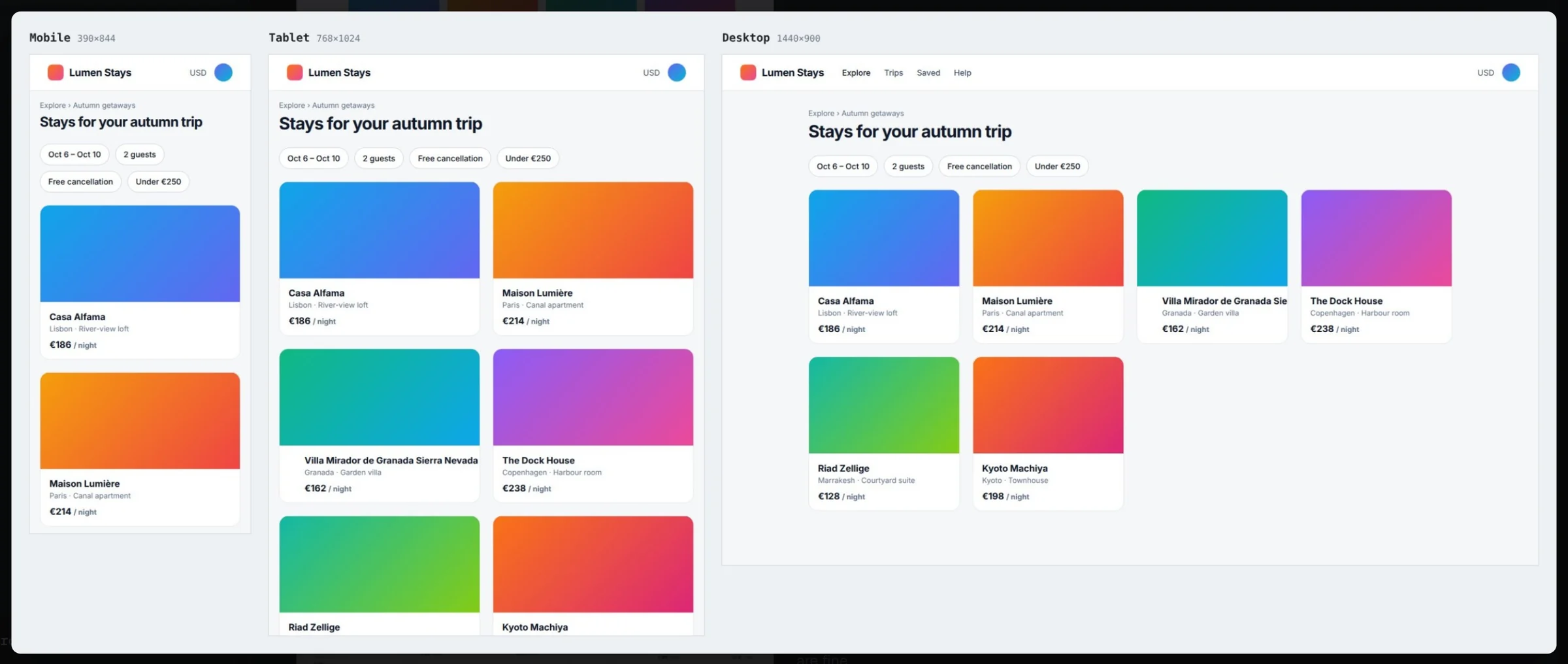
To show one layout at several breakpoints, repeat the capture for each size and place the images side by side.
Other ways to capture a scrolling screenshot
DevTools is the most accurate built-in option, but it is not the only one. Here is how the alternatives compare for capturing an entire web page:
| Method | Full page? | Trade-offs |
|---|---|---|
| DevTools: Capture full size screenshot | Yes | Built in and pixel-accurate; no annotation; misses inner scroll areas |
| Print > Save as PDF | Yes, split into pages | Uses print styles, so layout, backgrounds and sticky elements often change |
| Windows Snipping Tool / macOS Screenshot | No, visible screen only | Quick for one area; you must stitch images manually |
| Zooming out, then a normal screenshot | Sometimes | Changes responsive layout and makes text unreadable |
| Screenshot extension | Yes | Adds annotation and stitching; check what data the extension uploads |
If the screenshot is going into a bug report, a full page image alone is rarely enough. Circle the problem area, add the page URL and your window size, and include console errors when something is broken rather than just misaligned. Our guide on how to write a bug report lists what else developers need.
For design reviews, capture the same page at consistent widths every time, for example 390px, 768px and 1440px, so reviewers can compare versions and spot regressions between releases. Collecting client feedback on a whole site? See our website feedback tool page.
Troubleshooting scrolling screenshots
- Blank or gray sections: images were lazy-loaded. Scroll through the whole page before capturing.
- Only part of the page is captured: the site scrolls inside a container (common in dashboards and single-page apps), not the page itself. DevTools captures the document height, so use Capture node screenshot on the scrolling container, or temporarily remove its height limit in the Styles pane.
- Sticky headers or cookie banners in odd places: fixed elements are drawn once at their position. Dismiss banners first, or hide the element in the Elements panel (select it and press H).
- Animations or carousels mid-transition: wait for them to settle, or pause animations in the Animations drawer.
- Huge or failed files: very long pages can exceed image size limits. Capture sections with Capture area screenshot instead.
- Sensitive data visible: blur or crop names, emails and account numbers before sharing, especially in bug reports sent outside your team.
The faster way: Bugmark
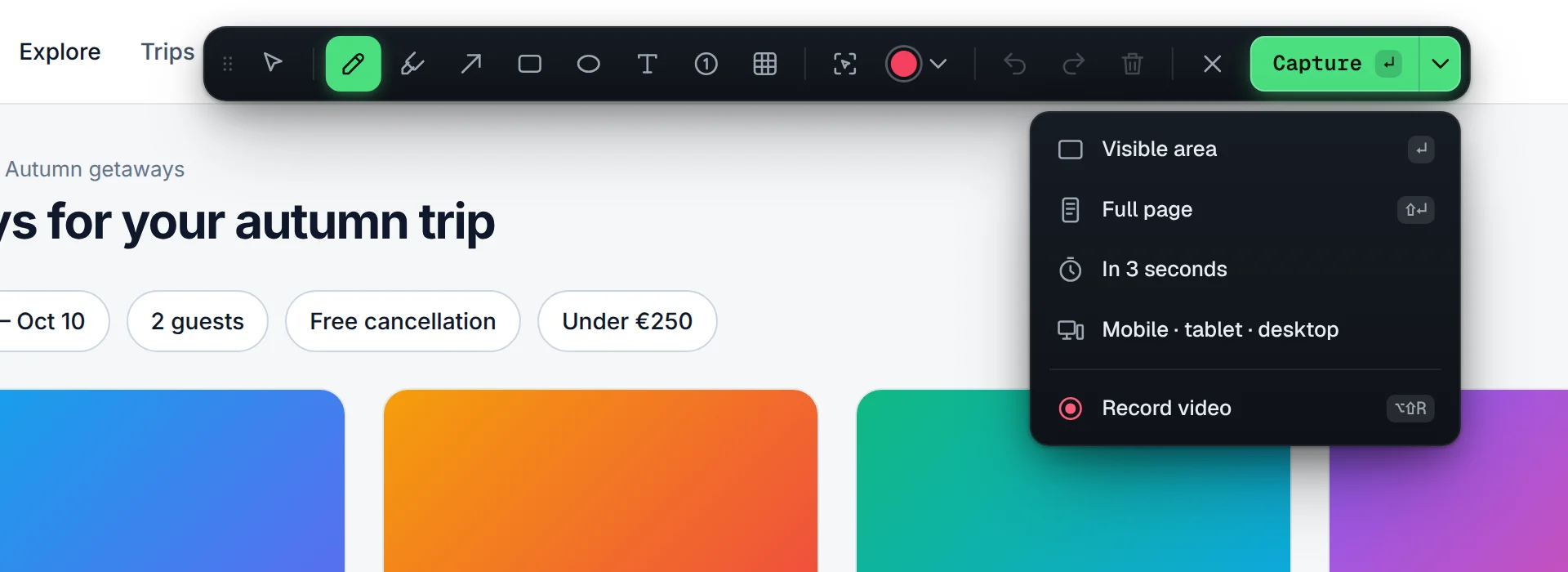
DevTools is great for a one-off image, but it cannot annotate, redact, or handle pages that scroll inside panels. Bugmark is a free Chrome extension that captures and marks up screenshots in one step.
- Full page capture with scroll-and-stitch, including inner scrolling panels and SPA containers.
- Other modes: visible area, a single element, and a 3-second delayed capture for hover states, menus and tooltips.
- Mobile, tablet and desktop in one image: renders the page at 390x844, 768x1024 and 1440x900 side by side.
- Annotate with arrows, boxes, text, numbered pins and a redact tool that pixelates sensitive details.
- Start with Alt+Shift+S and every capture also carries console errors, network requests and steps to reproduce.
Captures are stored locally in your browser. Add Bugmark to Chrome — free
How to take a full page screenshot in Chrome
- 1
Load the full page
Open the page and scroll to the bottom and back so lazy-loaded images appear.
- 2
Open DevTools
Press F12, Ctrl+Shift+I or Cmd+Option+I.
- 3
Open the Command Menu
Press Ctrl+Shift+P on Windows and Linux or Cmd+Shift+P on Mac.
- 4
Search for screenshot
Type screenshot to list the capture commands.
- 5
Capture full size screenshot
Select Capture full size screenshot and press Enter.
- 6
Find the PNG
Open the downloaded PNG file in your Downloads folder.
Frequently asked questions
Can Chrome take a full page screenshot without an extension?
Yes. Open DevTools, press Ctrl+Shift+P or Cmd+Shift+P to open the Command Menu, type screenshot and choose Capture full size screenshot. Chrome saves a PNG of the whole scrollable page to your Downloads folder. The same option is available in the device toolbar's More options menu for mobile sizes.
Why is my full page screenshot cut off?
The page probably scrolls inside a container element rather than the document itself, which is common in web apps and dashboards. DevTools only captures the document height. Select the scrolling container in the Elements panel and use Capture node screenshot, or use a tool that stitches inner scrolling panels.
Where does Chrome save DevTools screenshots?
Chrome saves DevTools screenshots as PNG files in your default download location, usually the Downloads folder. If Chrome is set to ask where to save each file, you will see a save dialog instead. The file name includes the site name so it is easy to find.
How do I take a full page screenshot of a mobile view?
Open DevTools, press Ctrl+Shift+M or Cmd+Shift+M to turn on the device toolbar, and choose a device or enter a custom size. Then open the three-dot More options menu on the device toolbar and choose Capture full size screenshot. Enable Show device frame first if you want the phone outline.
Why are images missing from my full page screenshot?
Many sites lazy-load images only when they scroll into view, so parts of the page below the fold have not loaded yet when you capture. Scroll slowly to the bottom of the page and back to the top, wait a moment for images to finish loading, then run Capture full size screenshot again.
Try Bugmark free — no account needed
- Screenshots & screen recording
- Console & network logs
- Steps to reproduce
- GitHub issues & reports