guide
Steps to reproduce template and examples
Steps to reproduce (STR) are the part of a bug report developers read first and the part most often done badly. Use the template below, follow a few simple rules, and your bugs will stop coming back marked "cannot reproduce".
Quick answer
What goes in steps to reproduce
Start with preconditions (account, starting URL, required data and browser). Then write numbered steps, one action each, using the exact labels on screen and the exact values you entered. Finish with the expected result, the actual result and how often it happens, such as "always" or "3 of 10 tries".
Steps to reproduce template
Copy this template into any issue tracker. Replace everything in angle brackets and delete lines that do not apply.
Preconditions:
- Logged in as: <role / test account>
- Starting URL: <https://...>
- Data or settings needed: <e.g. cart contains 1 item, feature flag X on>
- Browser / device: <Chrome 140, Windows 11, 1920x1080>

Steps to reproduce:
1. Go to <URL or screen>.
2. Click <exact button or link label>.
3. Enter <exact value> in <field name>.
4. Click <exact label>.

Expected result:
<what should happen>

Actual result:
<what happens instead, including any error text>

Reproducibility:
<Always | Intermittent (3 of 10) | Once>
This format drops straight into the "Steps to reproduce" section of our full bug report template.
Steps to reproduce example
Here is the template filled in for a real-world permissions bug. Notice that a developer who has never used this screen could follow it exactly.
Preconditions:
- Logged in as: admin@example.test (Admin role)
- Starting URL: https://app.example.com/settings/team
- Team has at least 2 members

Steps to reproduce:
1. Go to Settings > Team.
2. Click the "..." menu next to any member.
3. Click "Change role" and select "Viewer".
4. Click "Save".

Expected result:
A "Role updated" toast appears and the member's role shows "Viewer".

Actual result:
The dialog closes, no toast appears, and the role still shows "Editor"
after a page refresh. PATCH /api/members/42 returns 403.

Reproducibility:
Always (4 of 4) in Chrome and Edge; not tested in Safari.| Weak step | Strong step |
|---|---|
| "Go to settings" | "Go to Settings > Team" (with the starting URL in preconditions) |
| "Change someone's role" | "Click the ... menu next to any member, then Change role" |
| "Enter a date" | "Enter 02/30/2026 in the Start date field" |
| "Submit it" | "Click Save" |
| "It breaks" | "No toast appears; PATCH /api/members/42 returns 403" |
How to write steps to reproduce
- Reproduce it twice from scratch. Use a fresh tab or an incognito window so you know your cache, extensions or earlier actions are not the real cause.
- Write the preconditions. Note the account or role, starting URL, required data, feature flags, browser, OS and window size.
- Write one action per step. Each numbered line should be a single click, entry or navigation.
- Use exact labels and values. Quote buttons and menu items as they appear, and write the literal text, number or file you used.
- Remove unnecessary steps. Try again while skipping steps. If the bug still happens, delete them so the path is as short as possible.
- End with expected and actual results. Put them after the steps, on separate lines, with exact error text.
- Add reproducibility. Record how many attempts triggered it and whether it happens in other browsers.
Test your steps
Hand your steps to a colleague who has not seen the bug, or follow them yourself in an incognito window without improvising. If either of you has to guess at any point, add the missing detail.
Steps to reproduce examples by bug type
Different kinds of bugs need different details in the preconditions and steps. Use this table to check that your reproduction steps include what matters most for the problem you found.
| Bug type | Details that must be in the steps | Example step |
|---|---|---|
| Form validation | Exact values typed in each field | "Enter 12345678901 in Phone number and click Continue" |
| Layout or visual | Window width, zoom level, browser, device | "Resize the window to 390px wide (device toolbar, iPhone 12 Pro)" |
| Permissions | Role and account type | "Log in as a Viewer on the Free plan" |
| Data or search | The specific record, filter or query | "Search for O'Brien in Customers" |
| Timing or race condition | Speed of actions, network throttling | "Double-click Pay within half a second" |
| File upload | File type, size and name | "Upload a 12 MB .heic image named photo 1.heic" |
For visual bugs, a numbered screenshot is often the clearest companion to written steps: add a numbered pin for each step directly on the image. For bugs across long pages, a full page screenshot shows where each element sits.
Whatever the bug type, write steps in the imperative ("Click", "Enter", "Go to") and in the order the user performs them. Avoid "then I tried" narration; it reads like a story and hides the actual sequence of actions.
Intermittent bugs and common mistakes
Some bugs only appear under specific timing, data or network conditions. For those, record what you can: how many attempts out of how many failed, the exact time of each failure, the network speed, and any console errors or failed requests. A short screen recording and a console log are often more useful than perfect steps.
- Starting mid-flow. "Click Save" means nothing if the reader does not know which page or data you started with.
- Combining actions. "Fill in the form and submit" hides which field value triggered the bug.
- Missing test data. Specific records, coupon codes or file types are often the real trigger. Include them, using test data rather than customer data.
- Leaving out the environment. A bug that only happens at mobile width or in one role is impossible to reproduce without that detail.
- Mixing results into steps. Keep observations in the expected and actual sections so the steps read as pure instructions.
- Typing real passwords. Write "log in as a test admin" rather than including credentials in the ticket.
The faster way: Bugmark
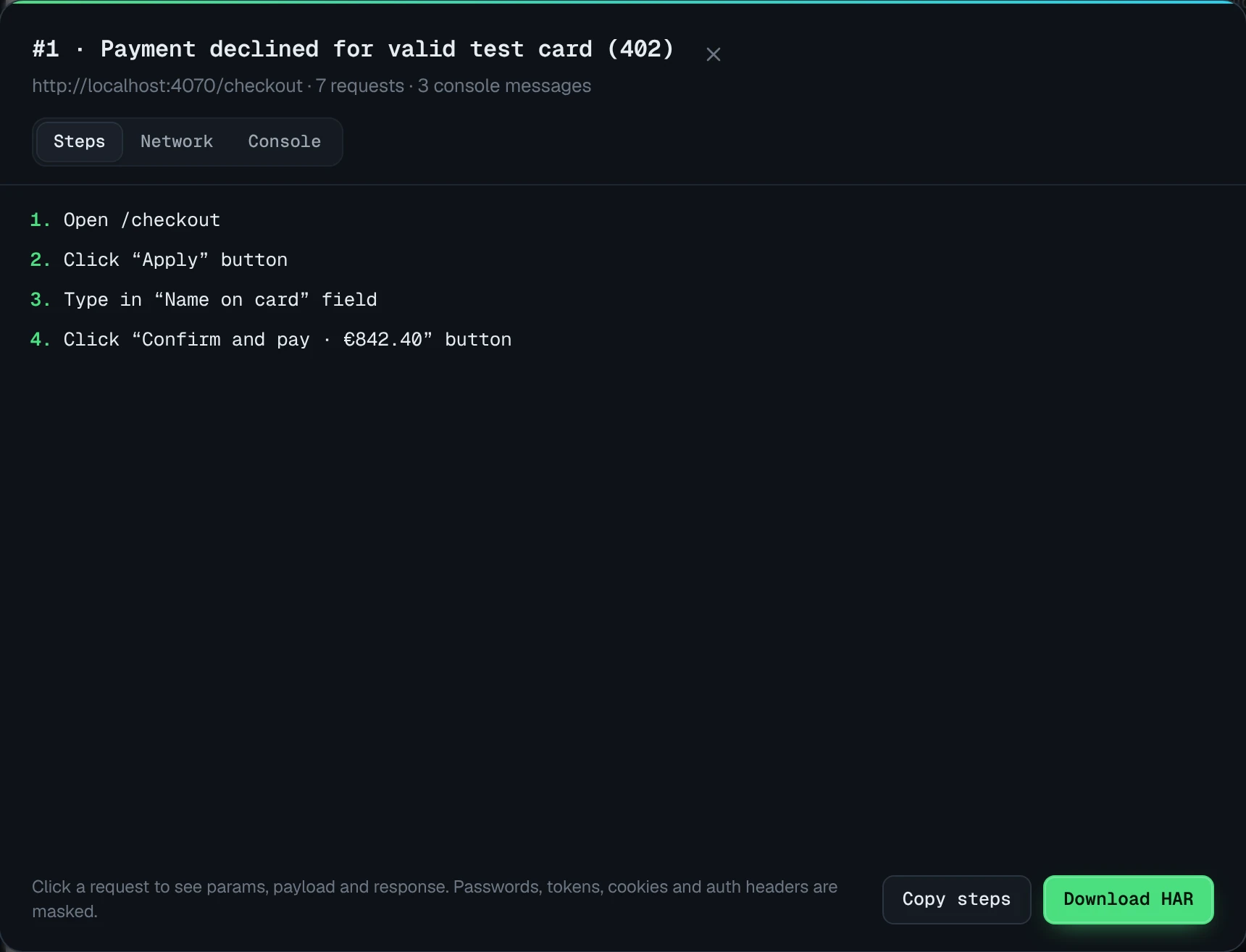
Most people forget what they clicked by the time they write the ticket. Bugmark is a free Chrome extension that records reproduction steps for you in the background.
- Keeps the last 30 actions in the tab: clicks with element labels, which field you typed in (never the typed text), selects, checkboxes, form submits and single-page app navigation.
- Steps are editable before saving, so you can remove noise or add a precondition.
- Each capture also includes the URL, browser, OS and viewport, plus console errors and network requests.
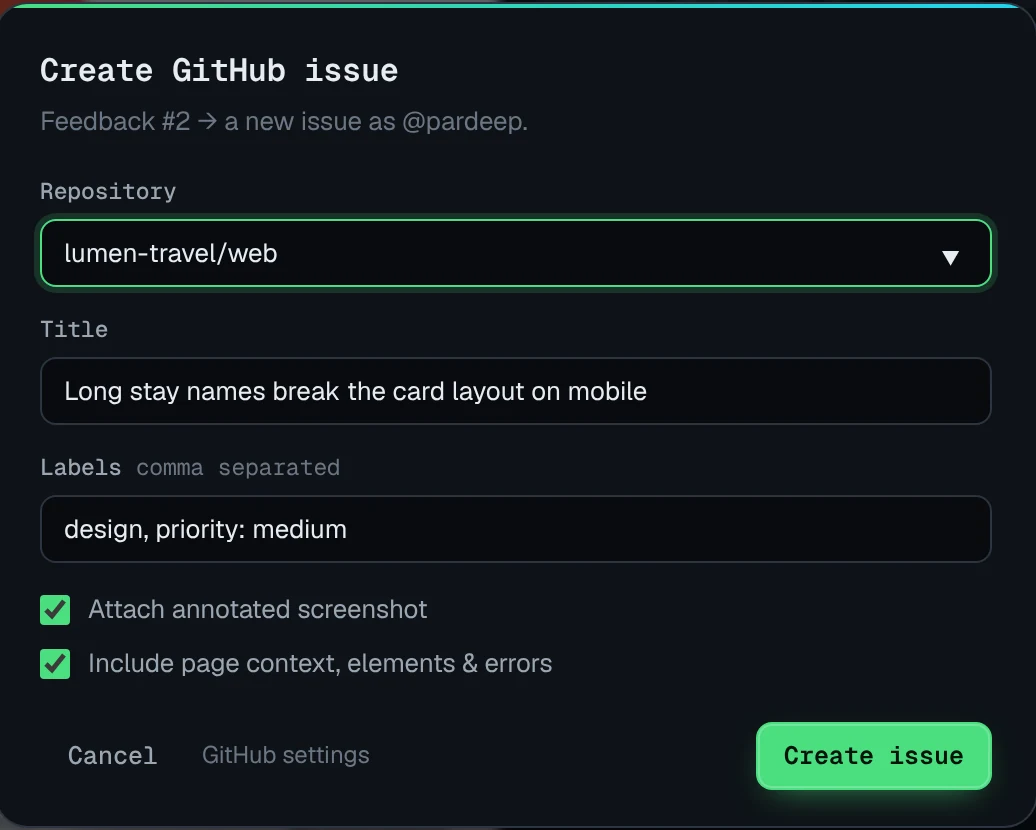
- Copy the report as Markdown for GitHub, Jira, Linear or Slack, export CSV, or create a GitHub issue with the steps included.
No account needed, and captures stay in your browser. Add Bugmark to Chrome — free
How to write steps to reproduce
- 1
Reproduce from scratch
Trigger the bug twice from a fresh tab or incognito window to confirm the path.
- 2
List preconditions
Note the account or role, starting URL, required data, browser, OS and window size.
- 3
Write one action per step
Number each step and limit it to a single click, entry or navigation.
- 4
Use exact labels and values
Quote on-screen labels and the literal values you entered.
- 5
Trim the steps
Remove any step that is not needed to trigger the bug.
- 6
Add expected and actual results
Describe what should happen and what actually happens, with exact error text.
- 7
Note reproducibility
Record how often the bug happens and in which browsers you tested.
Frequently asked questions
What does STR mean in a bug report?
STR stands for steps to reproduce. It is the numbered list of actions someone must take, from a known starting point, to make a bug happen again. Along with the expected and actual results, it is the most important part of a bug report because developers need to see a problem before they can fix it.
How many steps to reproduce should a bug report have?
As few as possible while still reliably triggering the bug. Most good reports have between three and eight steps. If you have more than ten, try removing steps and reproducing again; often many of them are not needed. Long setup can move into a preconditions list above the numbered steps.
What should I write if a bug is not reproducible?
Say so honestly and describe what you were doing as precisely as you can. Include the time, URL, browser, account and any error messages, and mark reproducibility as "seen once" or "1 of 10 attempts". Attach any screenshots, recordings or logs you captured. Timestamps help developers match your report to server logs.
Should steps to reproduce include expected and actual results?
Yes, but as separate sections after the numbered steps rather than inside them. Keeping the steps as pure instructions makes them easy to follow, and the expected versus actual lines make it clear exactly what went wrong and what correct behavior looks like.
What are preconditions in steps to reproduce?
Preconditions describe the state that must exist before step one: which account or role you are logged in as, the starting URL, required data such as items in a cart, enabled feature flags, and the browser and device. Listing them separately keeps the numbered steps short and prevents failed reproductions.
Try Bugmark free — no account needed
- Screenshots & screen recording
- Console & network logs
- Steps to reproduce
- GitHub issues & reports