qa testing tool
A QA testing tool that makes manual bug reporting faster
Manual testers spend a surprising share of a session writing up what they found instead of testing. Bugmark records the steps, logs and environment while you test, so logging a bug takes a capture, a title and a priority.
The cost of writing bugs up by hand
On an exploratory session a tester might find a dozen issues in an hour. For each one, the manual routine is: take a screenshot, crop it, open DevTools to check for errors, note the browser and window size, retrace the clicks to write steps, then paste it all into a ticket. At several minutes per bug, the write-up can take as long as the testing, and the steps are reconstructed from memory by the end of the session.
Bugmark is a manual testing tool focused on that write-up. It doesn't manage test cases or run automated suites; it removes the clerical work from reporting what you find.
There is a quality cost too. Steps written from memory skip the detail that turns out to matter, such as the filter applied two screens earlier or the checkbox left unticked. Environment details get omitted when a tester is in a hurry. And console errors are only included when someone thinks to look, which is exactly when the bug already seems technical. Automatic capture makes those details consistent across every report, not just the careful ones.
What a tester gets on every capture
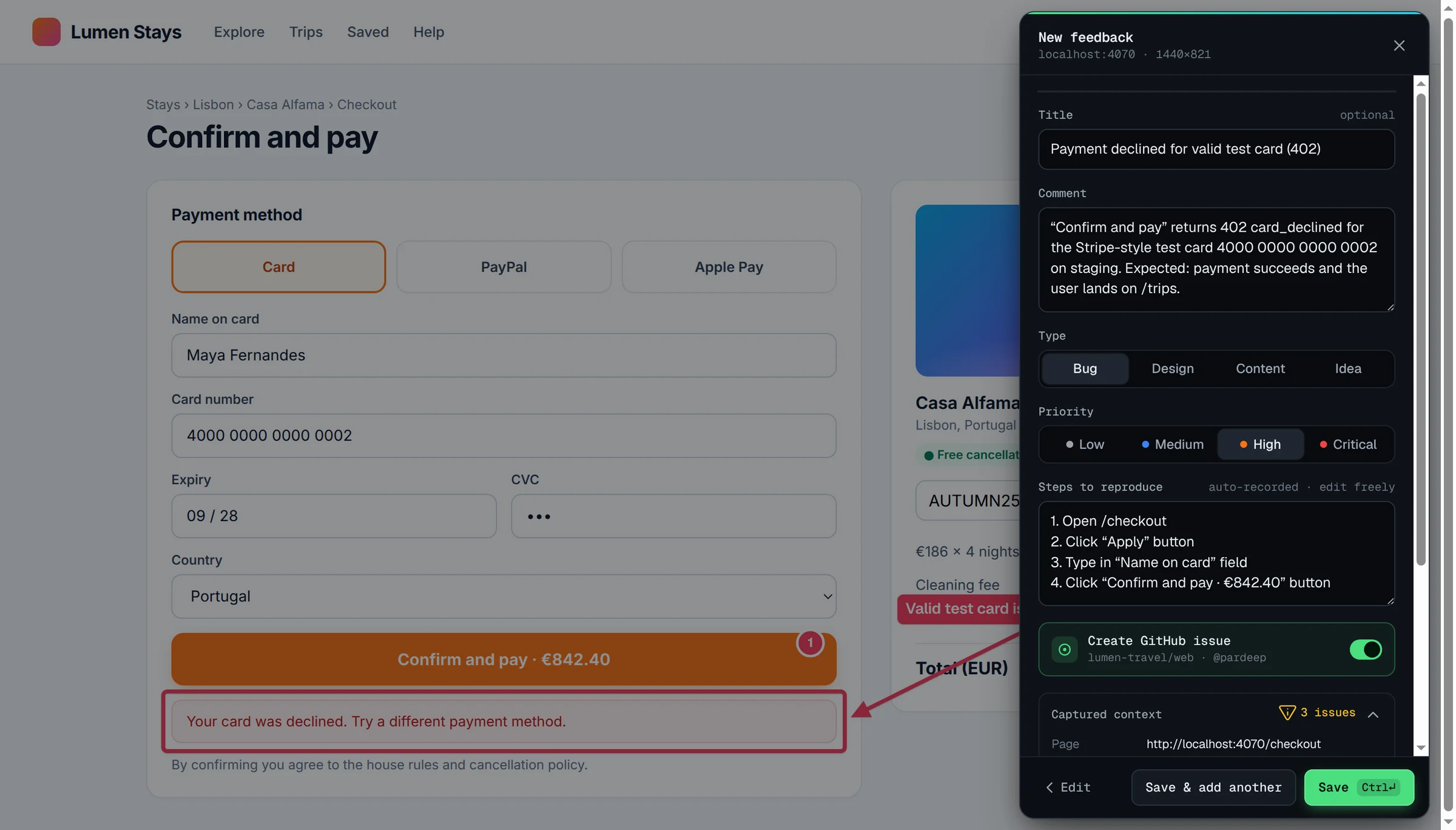
- Recorded steps — the last 30 actions in the tab, including which field you typed in (never the value), selects, checkboxes, form submits and SPA navigation. Edit them to remove detours before saving.
- Console and network evidence — the last 150 console messages with uncaught errors, and the last 150 network requests with payloads and responses for recent API calls, so developers can see whether a failure was front end or back end.
- Environment — URL, browser, OS, viewport, pixel ratio and scroll position, captured without anyone typing them.
- Type and priority — set on the capture panel and used for sorting, filtering and GitHub labels.
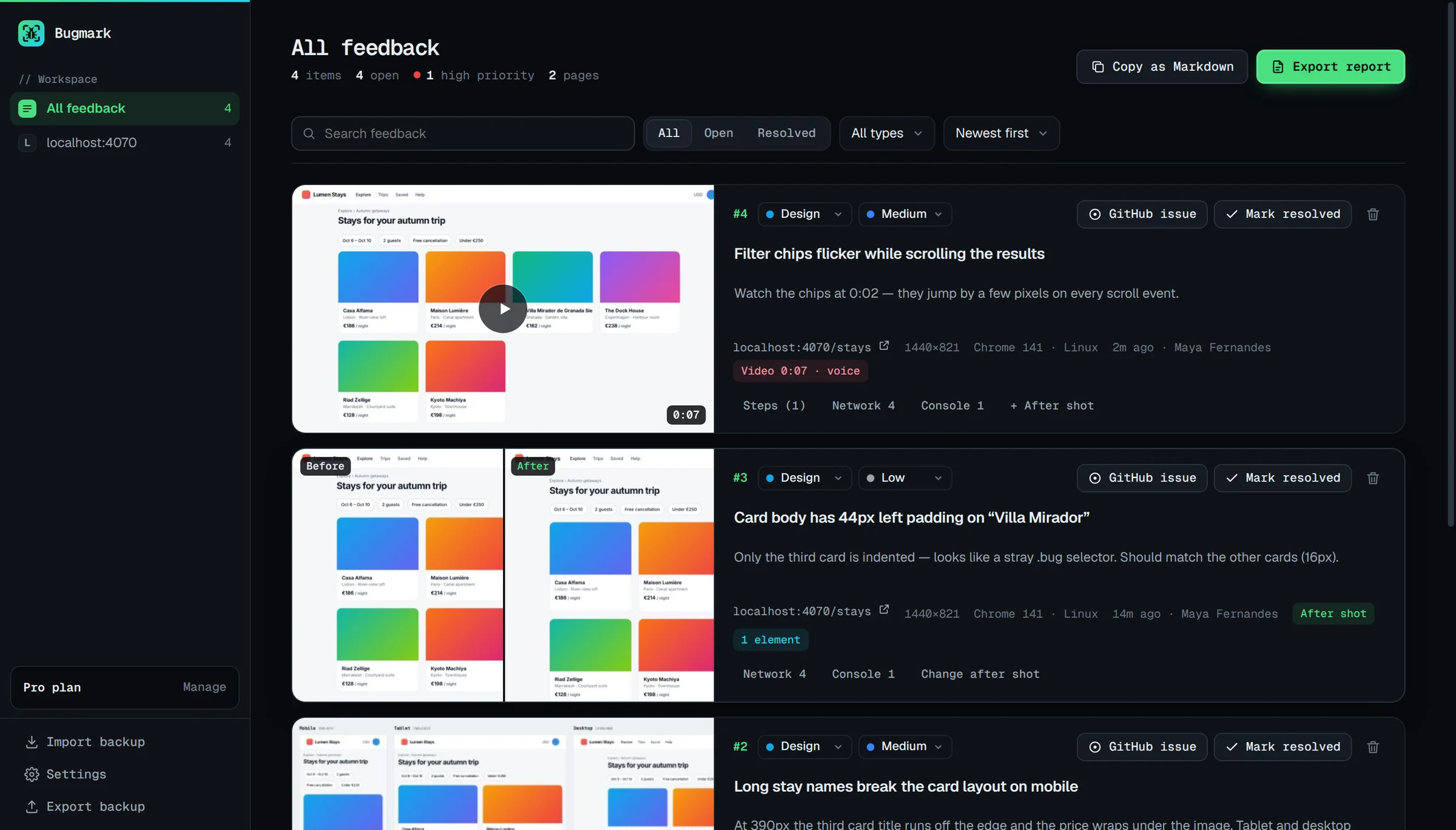
- Video when needed — record up to 5 minutes with narration for flows that are hard to describe.
A test session with Bugmark
- Open the build under test in Chrome and work through your charter or checklist.
- When something breaks, press ⌥⇧S, pin the problem, add a title and priority, and save with ⌘/Ctrl+Enter. You are back to testing in under a minute.
- For responsive checks, use the Mobile · tablet · desktop capture to document the page at 390×844, 768×1024 and 1440×900 in one image.
- At the end of the session, open the dashboard, filter by site and status, sort by priority and tidy up titles inline.
- Export a CSV to import into Jira, Linear or a test management sheet, create GitHub issues individually, or send a single HTML report as the session summary.
Verifying fixes and regressions
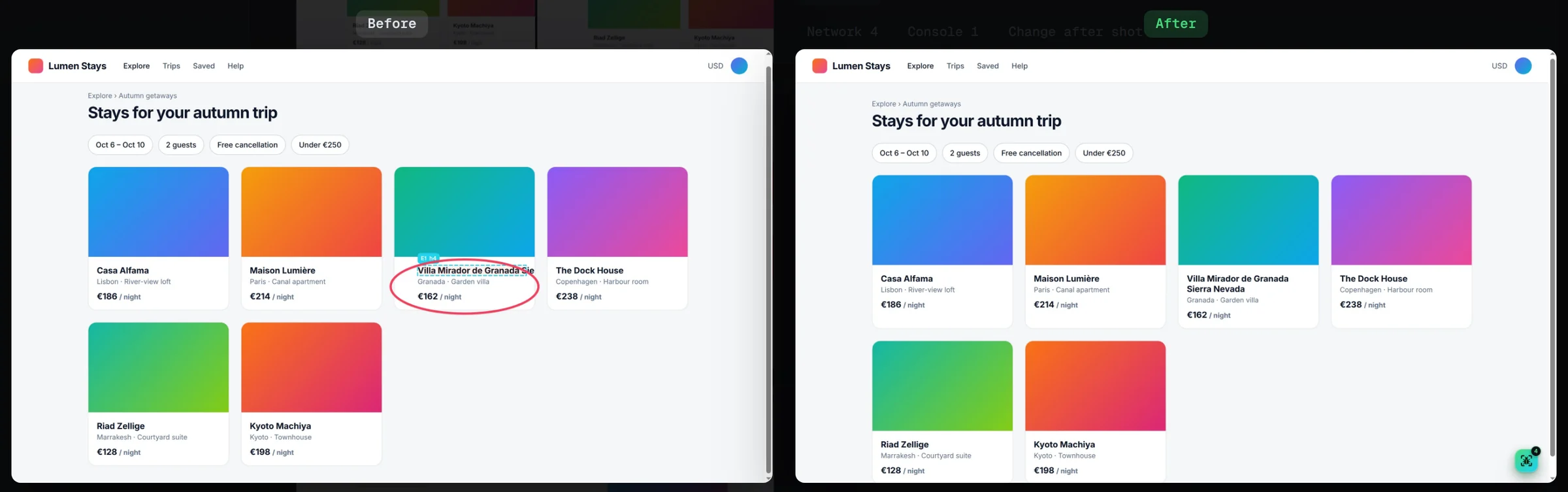
Retesting is where evidence tends to get lost. With Bugmark, open the original report when a fix is deployed and add an after screenshot: recapture the page at the same scroll position, upload an image, or paste one. The report then shows before and after side by side, and you can mark the item resolved in the dashboard. Exported HTML and PDF reports carry the comparison, which is useful for release sign-off or for a client who needs proof that the issues from the last round were addressed.
Reports developers accept the first time
The friction between QA and engineering usually comes from reports that can't be acted on. When each bug includes the failing request's status and response body, the console error and the exact sequence of actions, “works for me” gets much rarer. Developers can copy a request as cURL or download a HAR without asking the tester to reproduce anything. For guidance on the written part, share how to write a bug report and the steps to reproduce template with your team, and point developers at the network request logger page for the details of what is captured.
Where it fits in a QA stack
| Need | Bugmark | Use something else |
|---|---|---|
| Logging bugs during manual or exploratory testing | Yes | — |
| Evidence: steps, logs, screenshots, video | Yes | — |
| Test case management and test runs | No | A test management tool |
| Automated or end-to-end tests | No | A test automation framework |
| Native Jira or Linear sync | Not yet; CSV and Markdown export | Your tracker’s own importer |
| Shared team workspace | No; reports are local until exported | A hosted bug tracker |
| Cross-browser testing in Firefox or Safari | No; Chromium browsers only | Native browser testing |
That scope makes it easy to adopt alongside whatever you already use: nothing to migrate, and nothing to buy per tester. Captures are stored locally in each tester's browser and nothing is uploaded to Bugmark servers. For a shared record across a team, the usual pattern is to create GitHub issues or import the CSV export into your tracker at the end of each session, and use the JSON backup to move a tester's captures between machines.
Spend the session testing, not typing
Bugmark is free to try, with no account and every feature unlocked; a one-time $7.99 removes the 2-report limit. Installation takes about a minute and works in Chrome, Edge, Brave and Arc. Add Bugmark to Chrome — free.
Frequently asked questions
What is a QA testing tool?
A QA testing tool is software that helps testers plan, run or report on tests. Categories include test case management, test automation frameworks and bug reporting tools. Bugmark sits in the reporting category: it speeds up manual and exploratory testing by capturing screenshots, steps, logs and environment details for each bug.
How can manual testers report bugs faster?
Automate the parts of the write-up that are clerical: steps to reproduce, browser and viewport, console errors and network failures. With Bugmark a tester captures and annotates the page, adds a title and priority, and saves; the context is attached automatically, and bugs can be exported in bulk at the end of a session.
Can I import Bugmark bug reports into Jira?
Yes, through export. Bugmark has no native Jira integration yet, but you can export reports as CSV and use Jira’s CSV importer, or copy an individual report as Markdown and paste it into a ticket. Exported HTML reports can also be attached to issues as supporting evidence.
Does Bugmark manage test cases or run automated tests?
No. Bugmark does not store test cases, track test runs or execute automated tests. It focuses on capturing and reporting bugs found during manual testing. Teams typically use it alongside a test management tool and an automation framework rather than instead of them.
How do I test a website at different screen sizes?
You can resize the window or use Chrome DevTools device mode. Bugmark adds a Mobile · tablet · desktop capture that renders the current page at 390×844, 768×1024 and 1440×900 using Chrome device emulation and combines them into one side-by-side image for quick responsive checks.
Try Bugmark free — no account needed
- Screenshots & screen recording
- Console & network logs
- Steps to reproduce
- GitHub issues & reports