jam alternative
Jam alternative: Bugmark vs Jam for bug reports
Jam and Bugmark both turn a bug into a report developers can act on: a screenshot or recording plus console logs, network requests and the steps that led there. The difference is where the work lives. Jam is a cloud workspace built around share links; Bugmark is a free Chrome extension that keeps everything in your browser.
TL;DR
The short version
Choose Jam if your team wants hosted share links, instant replay, a shared workspace and native Jira, Linear and Slack integrations. Choose Bugmark if you want a tool that is free to try, needs no account and costs a one-time $7.99 instead of a subscription, with reports stored locally in your browser, full network payloads and responses with secret masking, HAR download and GitHub issues created straight from a capture.
When Jam is the better fit
Jam is a polished, well-loved product, and for many teams it is the right call. Every Jam gets a link that opens in a browser tab with the video, console, network and device details, so anyone on the team can review it without installing anything. Its instant replay can capture what just happened on screen, which helps with bugs you did not expect to hit.
- Collaboration first: a shared workspace with creator and viewer seats, plus private folders and access controls on paid plans.
- Integrations: Jam lists Jira, Linear, Slack and more, along with webhooks, Sentry and Intercom connections.
- Recording Links: customers or teammates can record an issue from a link with nothing to install.
- AI help: automatic titles, summaries and repro steps, plus a Jam MCP server for coding agents.
Jam has a free plan (30 Jams per month and 5-minute recordings at the time of writing) and a Team plan priced per creator. Creating Jams requires an account, and captures are stored in Jam's cloud so the links work. Jam also redacts tokens, cookies and PII from network data on the client before upload, which is a thoughtful touch.
When Bugmark is the better fit
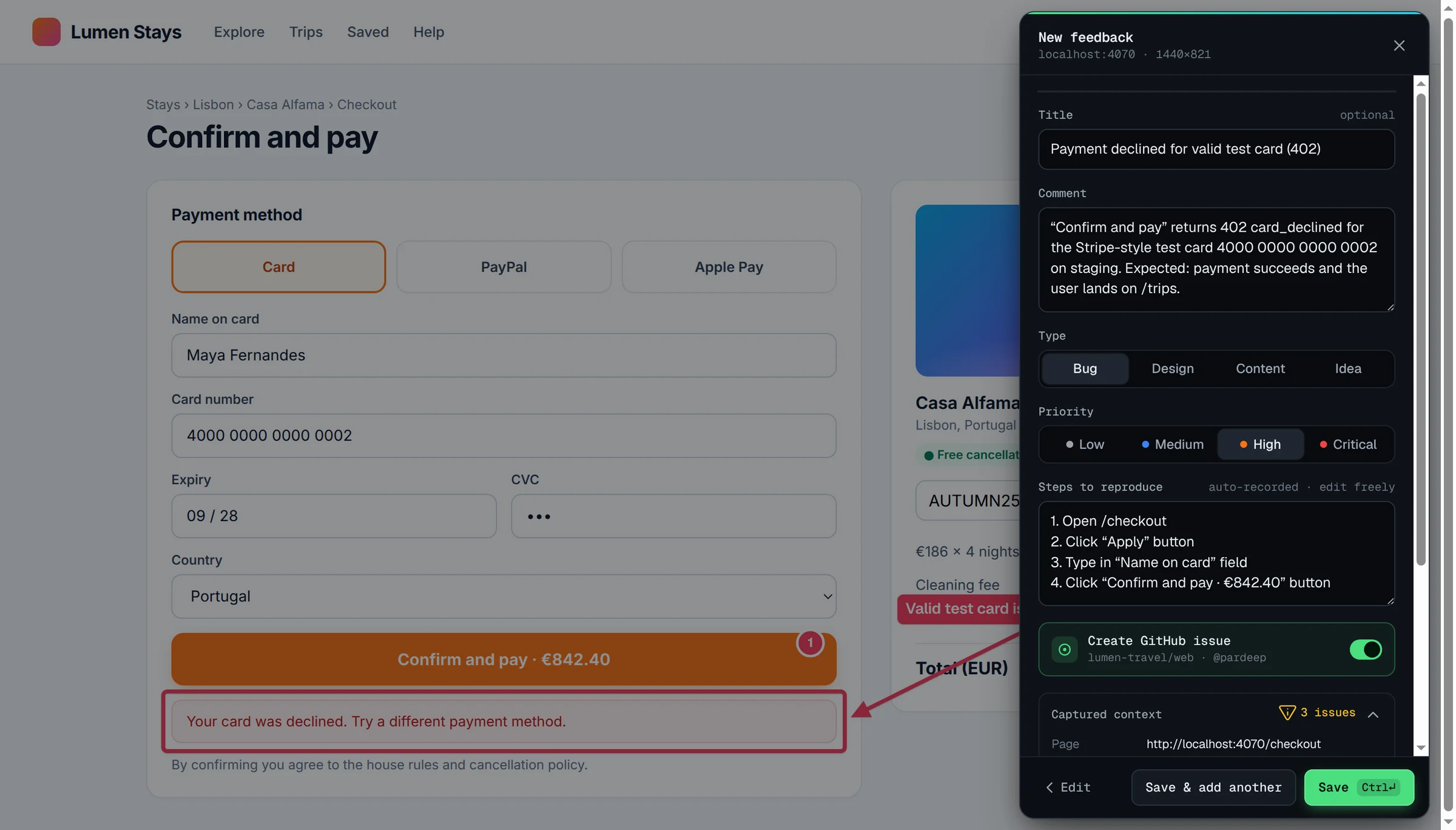
Bugmark is built for people who want developer-grade bug reports without a workspace, a login or a usage meter. Install the extension and every feature is unlocked: no sign-up and no watermark requirement. The free version keeps up to 2 saved reports at a time; a one-time $7.99 payment removes that limit for good.
- Local-first data: screenshots, recordings and logs stay in your browser (IndexedDB). Nothing is uploaded to Bugmark servers; data leaves only when you export a report or create a GitHub issue.
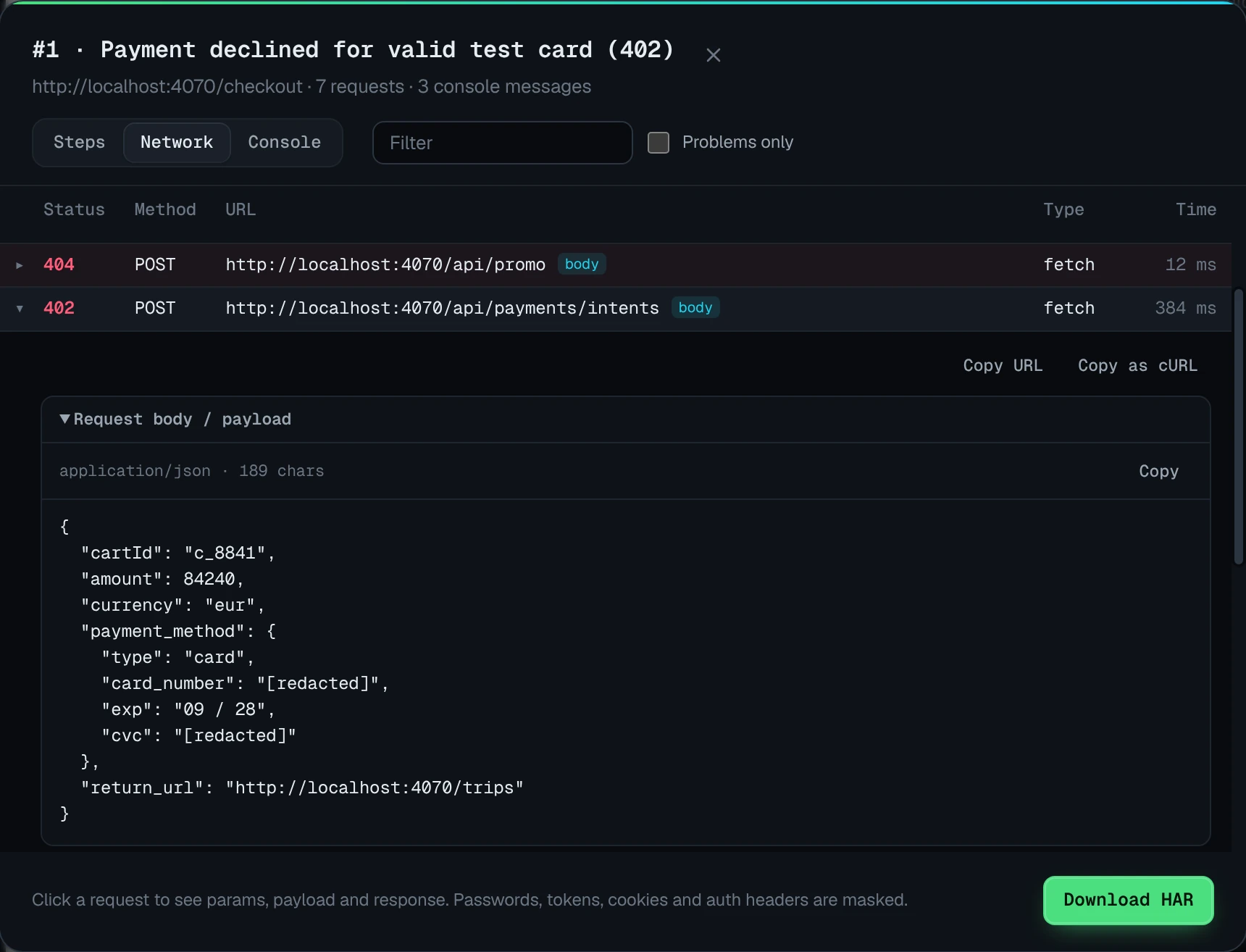
- Deep network context: the last 150 requests with method, status and timing, and for recent fetch/XHR calls the request headers, payload, response headers and response body. Passwords, tokens, API keys and Authorization or Cookie headers are replaced with
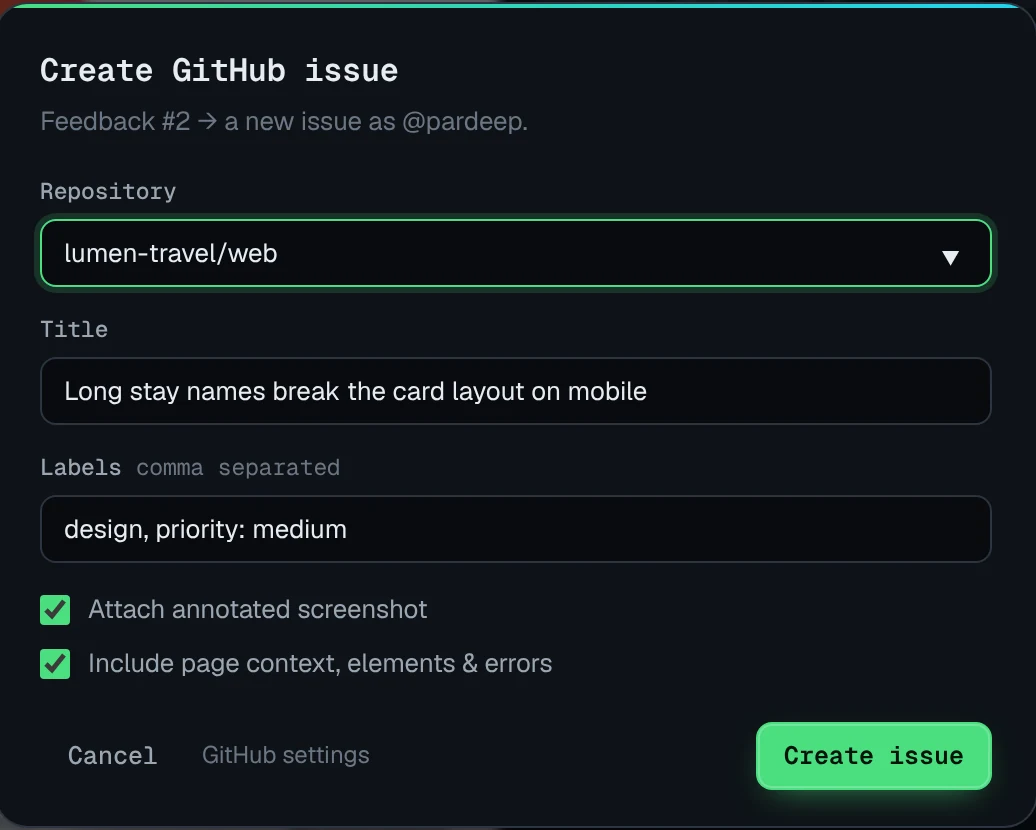
[redacted]before saving. - Developer exports: Copy as cURL, Download HAR for Chrome DevTools, and GitHub issues with screenshots, recordings and the HAR attached.
- Capture extras: full-page and element capture, a 3-second delayed capture, mobile/tablet/desktop breakpoints in one image, an element inspector with computed styles, and before/after comparisons.
Bugmark vs Jam: feature comparison
| Feature | Bugmark | Jam |
|---|---|---|
| Price | Free to try (every feature, 2 saved reports); $7.99 one-time for unlimited | Free plan with monthly limits; paid Team and Enterprise plans |
| Account required | No | Yes, to create Jams |
| Where data is stored | Locally in your browser | Jam's cloud (hosted links) |
| Screenshots & annotation | Yes: pen, arrows, shapes, text, numbered pins, redact | Yes |
| Screen recording | Tab recording with voice, up to 5 minutes | Yes, plus instant replay; length varies by plan |
| Console logs | Last 150 messages, errors and unhandled rejections | Yes |
| Network requests with payloads/responses | Yes, with secret masking, cURL and HAR download | Yes, with client-side redaction |
| Steps to reproduce | Last 30 actions, editable | User events captured; AI repro steps |
| Integrations | GitHub issues; CSV and Markdown export for Jira, Linear, Slack | Jira, Linear, Slack, webhooks and more |
| Share links/collaboration | No hosted links; self-contained HTML report export | Hosted links and team workspace |
Competitor details checked September 2026 from their public website; check their site for current plans.
Key differences in practice
On paper, Jam and Bugmark capture similar context. Day to day, the experience differs in three ways.
- Sharing model. A Jam is a link your teammates open in the browser. A Bugmark capture is a local record you turn into a GitHub issue, an HTML or PDF report, a CSV row or a Markdown snippet when you are ready.
- Privacy posture. Both tools mask sensitive network values before saving. With Bugmark, the capture itself also stays on your device, which can simplify reviews for client work, staging environments or internal tools.
- Cost as you grow. Jam's free plan has monthly limits and paid seats are priced per creator. Bugmark has no seats or subscription: each person can try it free, and unlimited reports cost a one-time $7.99, so a whole QA team can adopt it without a recurring budget line.
Neither approach is universally better. If your bug reports need to reach a product manager in one click, a hosted link is hard to beat. If they need to stay on your machine until you decide otherwise, local-first storage is the safer default.
How to try Bugmark alongside Jam
You do not have to switch everything at once. Many people keep a hosted tool for team sharing and use Bugmark when they need a private, detailed capture.
- Add Bugmark from the Chrome Web Store — click Add to Chrome and confirm. No account needed, and it works in Chrome, Edge, Brave and Arc.
- Reproduce a bug you recently reported in Jam and press
Alt+Shift+Sto capture it. - Open the network log, filter to failures and compare the payload and response detail with your existing report.
- Connect GitHub in settings with a fine-grained token or OAuth device flow and create an issue from the capture.
- For Jira or Linear, export CSV or copy Markdown from the dashboard.
Want the full picture first? See the bug reporting tool overview or learn how to write a bug report developers can fix. Add Bugmark to Chrome — free.
Frequently asked questions
Is Bugmark a free Jam alternative?
Yes. Bugmark is a Chrome extension that is free to try with every feature unlocked and no account (up to 2 saved reports at a time); a one-time $7.99 payment removes the limit. It captures screenshots, tab recordings with voice, console logs, network requests with payloads and responses, and steps to reproduce. It does not offer hosted share links or a team workspace, so it suits people who prefer local reports and exports.
Does Bugmark have instant replay like Jam?
No. Bugmark records the tab once you start a recording, and the recording continues across page loads for up to five minutes. It does not keep a rolling replay of past activity. It does automatically keep the last 30 actions, 150 console messages and 150 network requests, so most captures still include the context that led to the bug.
Where does Bugmark store my bug reports?
Bugmark stores screenshots, recordings and logs in your browser using IndexedDB on your own device. Nothing is uploaded to Bugmark servers. Data leaves your machine only when you export a report, such as HTML, PDF, CSV, Markdown or JSON, or when you create a GitHub issue. Optional anonymous usage stats count features only and can be turned off.
Can I send Bugmark reports to Jira or Linear?
Bugmark does not have native Jira or Linear integrations yet. You can export a CSV to import into Jira, Linear or Google Sheets, or copy a Markdown version of any report and paste it into a ticket. GitHub is supported natively, including screenshots, recordings and HAR files that render inside the created issue.
Can I use Bugmark and Jam at the same time?
Yes. Both are Chrome extensions and can be installed side by side. A common pattern is to keep Jam for shared links and team review while using Bugmark for private captures, HAR downloads or detailed network debugging. Each extension has its own keyboard shortcuts, so check for conflicts in chrome://extensions/shortcuts if needed.
Try Bugmark free — no account needed
- Screenshots & screen recording
- Console & network logs
- Steps to reproduce
- GitHub issues & reports